

- Name and an active toggle.
- Condition — what makes the rule match an order (cart amount, pincode, product, and so on).
- COD setting — whether COD stays available when the rule matches.
- Partial COD setting — whether Partial COD stays available, plus how the prepaid amount is calculated.
- COD charge increment (COD usage penalty rules only) — how much extra COD fee to add.
Step 1 — Setup
Name the rule, set its condition, then use Payment availability to decide what survives when the rule fires:- Allow Cash on Delivery — leave it off to block COD on matching orders, or on to keep COD available (useful when the rule only exists to force a Partial COD prepayment).
- Allow Partial COD — turn it on to continue to step 2 and configure the upfront amount. Turn it off and Next becomes Create; the rule finishes at step 1.
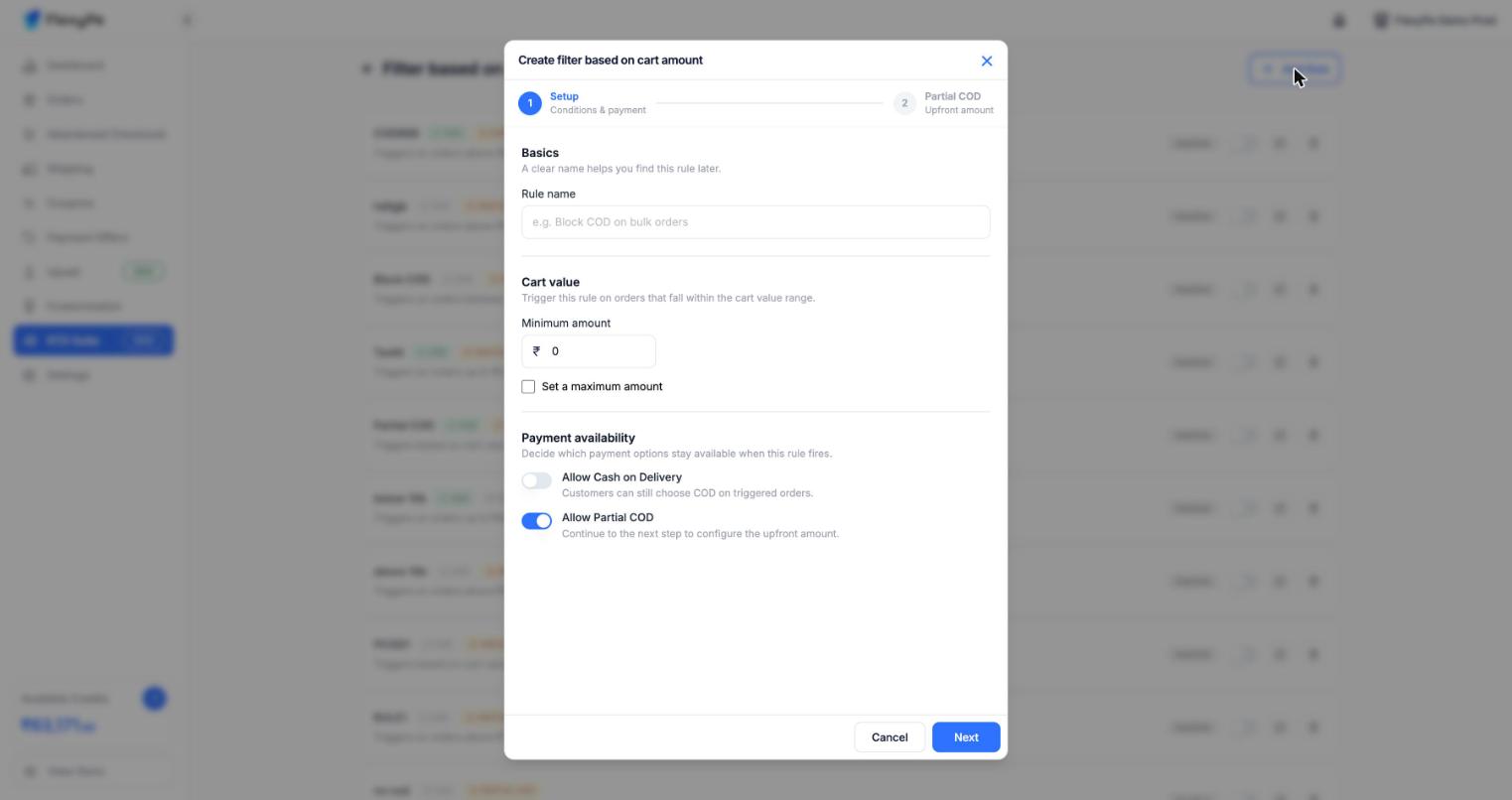
RTO Suite → Filter based on cart amount → Add rule — step one sets the condition and which payment options survive when the rule fires.
Step 2 — Partial COD
This step only appears if you allowed Partial COD. It answers one question: how should the upfront amount be calculated?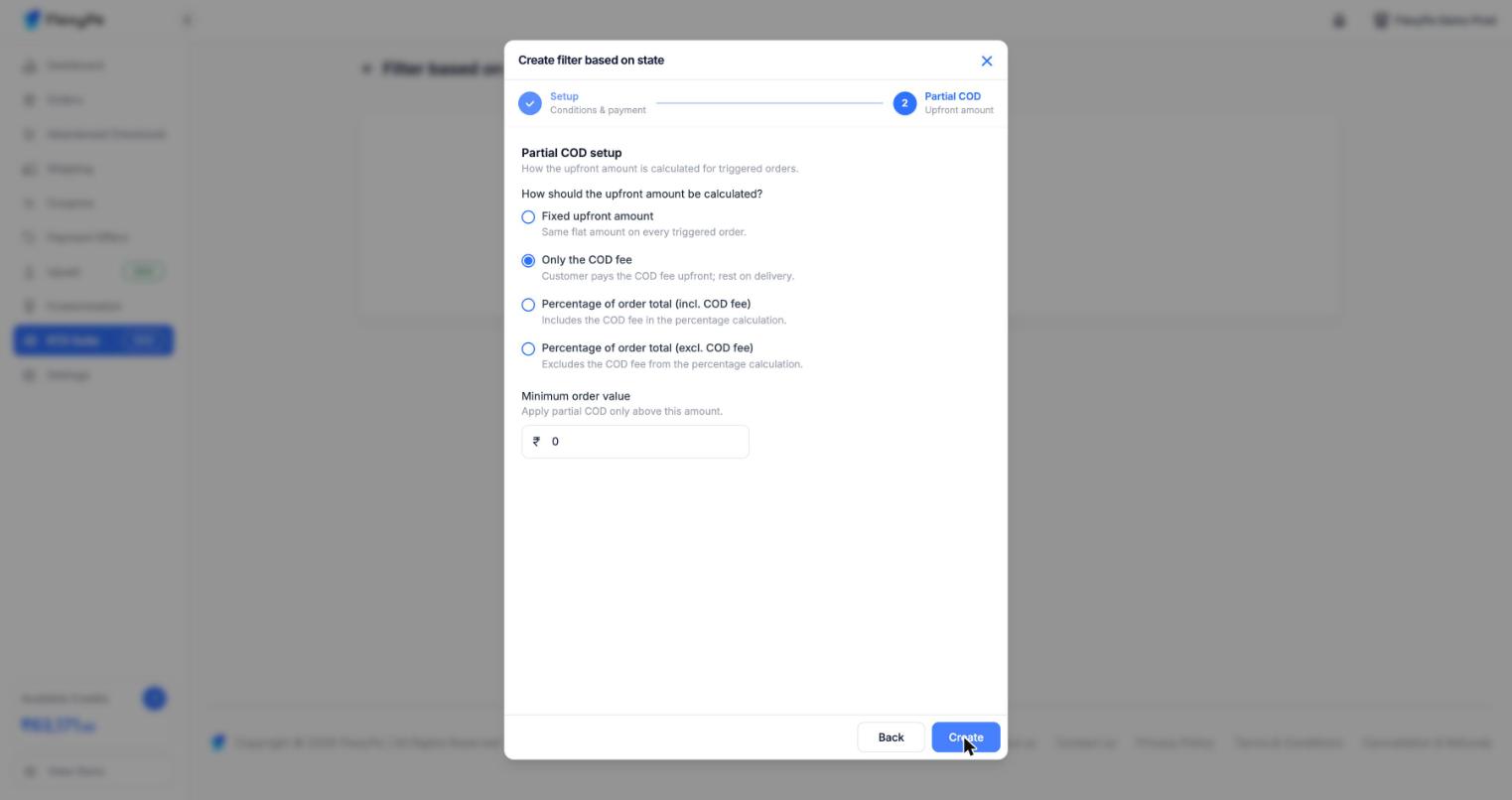
Step two of Add rule — pick how the prepaid amount is calculated, and optionally require a minimum order value before Partial COD is offered.
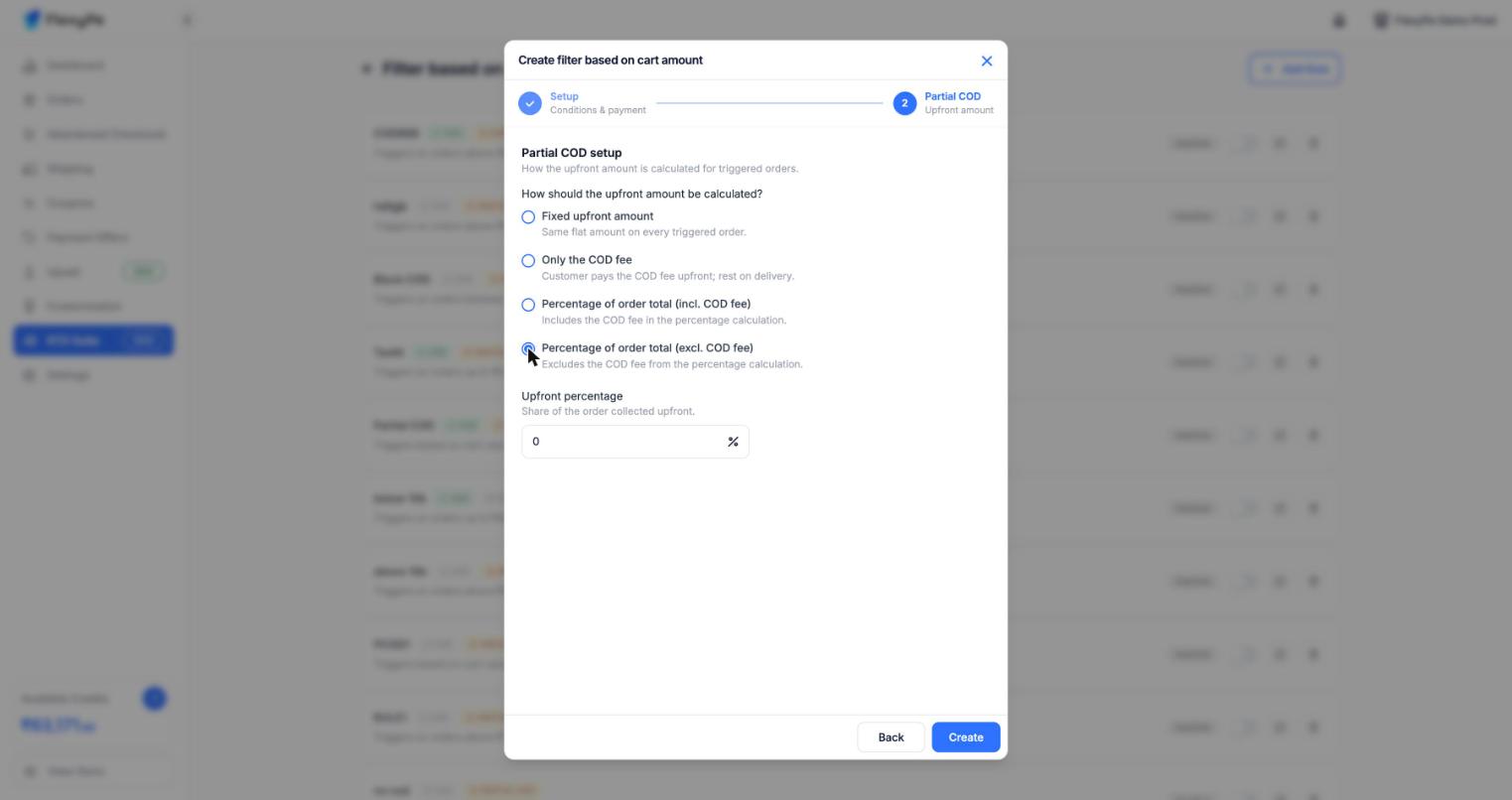
Choosing a percentage method swaps the amount field for an Upfront percentage input.
0 to offer Partial COD on every order the rule matches.
On cart amount rules there is no separate minimum order value on step 2 — the minimum you set as the rule’s condition in step 1 already does that job.
At checkout, FlexyPe builds an evaluation context from the live cart and customer, finds every active rule that matches it, then applies them according to your rule application mode.
Rule types
Rules are grouped into two sections on the RTO Suite page.Order & cart rules
Conditions based on the cart and the customer’s order history.Customer & product filters
Conditions based on who is buying, where it ships, and what is in the cart.Risk rules
Two further rule types exist in the platform and can be enabled for your store on request:- High-risk pincode — matches when the shipping PIN code has accumulated more than 10 returned COD orders on your store.
- COD usage penalty — matches any customer who has placed at least one COD order, and adds an escalating COD fee instead of blocking COD. Levels run from
increment_1toincrement_5, chosen by the customer’s COD order count and capped by the rule’s maximum increments. The increment is a fixed amount or a percentage of the base COD charge.
Partial COD in V2
Partial COD is configured per rule, not globally — each rule carries its own calculation method, upfront amount, and minimum order value, set in step 2 of rule setup above. This matters when rules overlap. If the cart subtotal is below a rule’s minimum order value, that rule contributes no Partial COD — and in All rules together mode, that is enough to make Partial COD unavailable for the whole order.How multiple rules combine
A real cart often matches several rules at once — for example a high-value cart shipping to a restricted PIN code. The rule application mode decides what happens then. Open RTO Suite and use the card at the top of the page: Choose how your RTO rules are applied.
RTO Suite — “All rules together” is the recommended mode; the selected option applies to your live checkout as soon as you confirm.
The change applies to your live checkout immediately, so the dashboard asks you to confirm before saving.
Single rule
Matching rules are sorted, and only the first one is used. Rules that have Partial COD enabled are considered first. Within that, the priority order is:- Cart amount
- User
- Pincode
- State
- Returned order
- Order count
- High-risk pincode
- Product
- Collection
- Cart item count
- COD usage penalty
All rules together
Every matching rule is evaluated, and the outcomes are combined:- COD starts available and is switched off if any matching rule blocks it. COD usage penalty rules never block COD on their own — they only change the fee.
- Partial COD starts available as soon as at least one rule matches, and is switched off if any matching rule disables it, or if a rule’s minimum order value is not met by the cart.
- Partial COD amount, when Partial COD survives, is the highest eligible prepaid amount across matching rules.
- COD fee, when several COD usage penalty rules match, uses the highest increment among them — increments are never stacked.
Worked example
A cart of ₹4,500 shipping to a restricted PIN code, from a customer with 3 previous COD orders. Three rules match:
Single rule — Cart amount has the highest priority, so COD stays available, Partial COD is offered at ₹450, and no penalty is charged. The PIN code restriction is ignored.
All rules together — the PIN code rule blocks COD, so COD is removed from checkout entirely. Partial COD is allowed by both rules that mention it, so it is offered at the higher amount, ₹900.
Which mode should you use?
- All rules together is recommended. It is the safer default: every restriction you configure actually takes effect, so a rule cannot be silently overridden by a higher-priority one.
- Single rule is useful when you want narrow, targeted exceptions and prefer predictable, one-reason behaviour per order.
After switching
- Confirm the mode shown on the RTO Suite page is the one you selected.
- Place a test order that matches a single rule and confirm COD and Partial COD behave as expected.
- Place a test order that matches several rules and confirm the strictest outcome is applied.
- Check that a cart below a rule’s minimum order value no longer sees Partial COD.