

The orders list
Open Orders from the left navigation.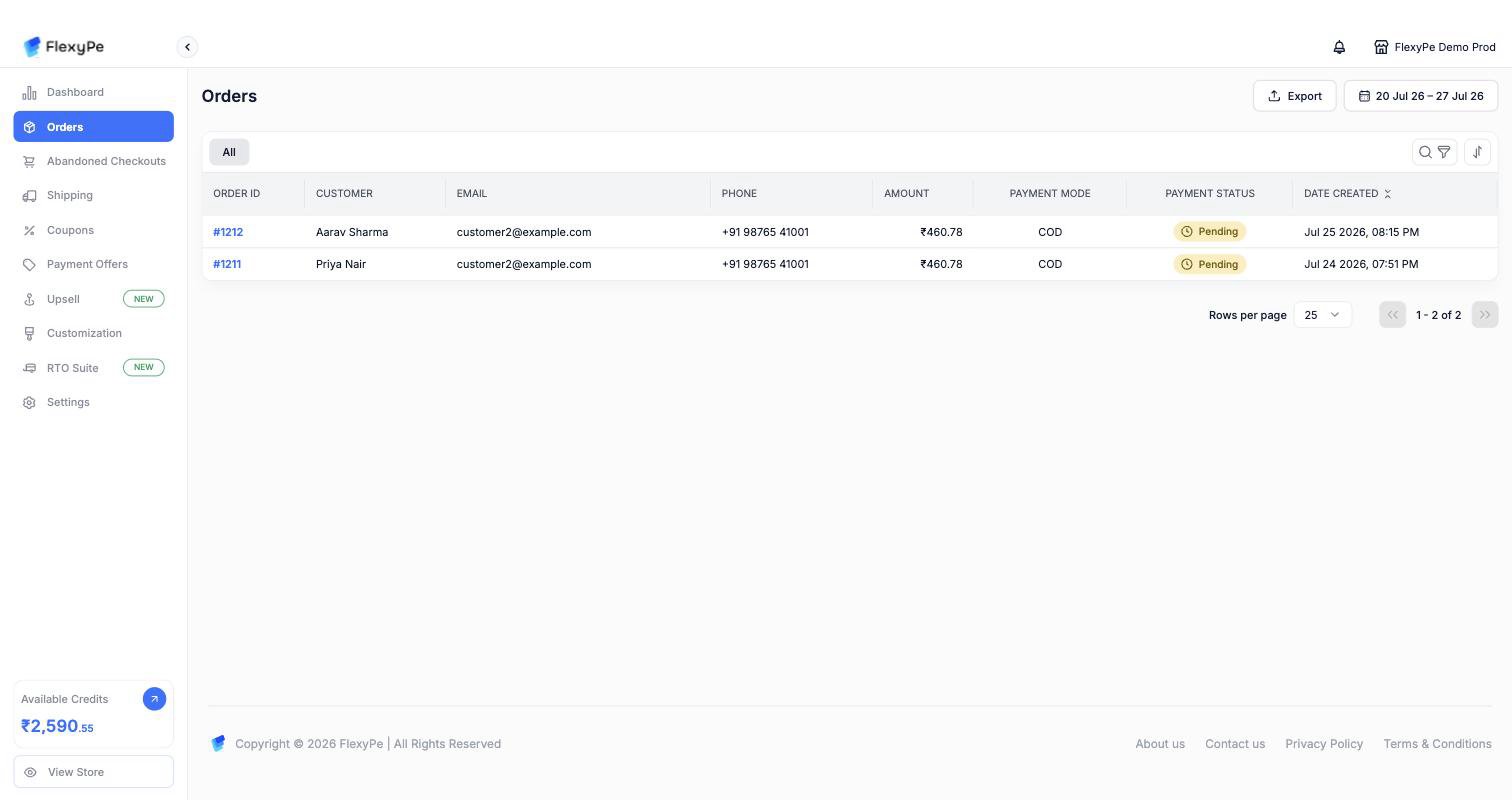
The Orders list, with search, filter, and sort controls above the table and the date range in the top-right.
Searching and filtering
Search
The search and filter bar is hidden until you ask for it. Click the search and filter icons above the table, or press Cmd/Ctrl + F.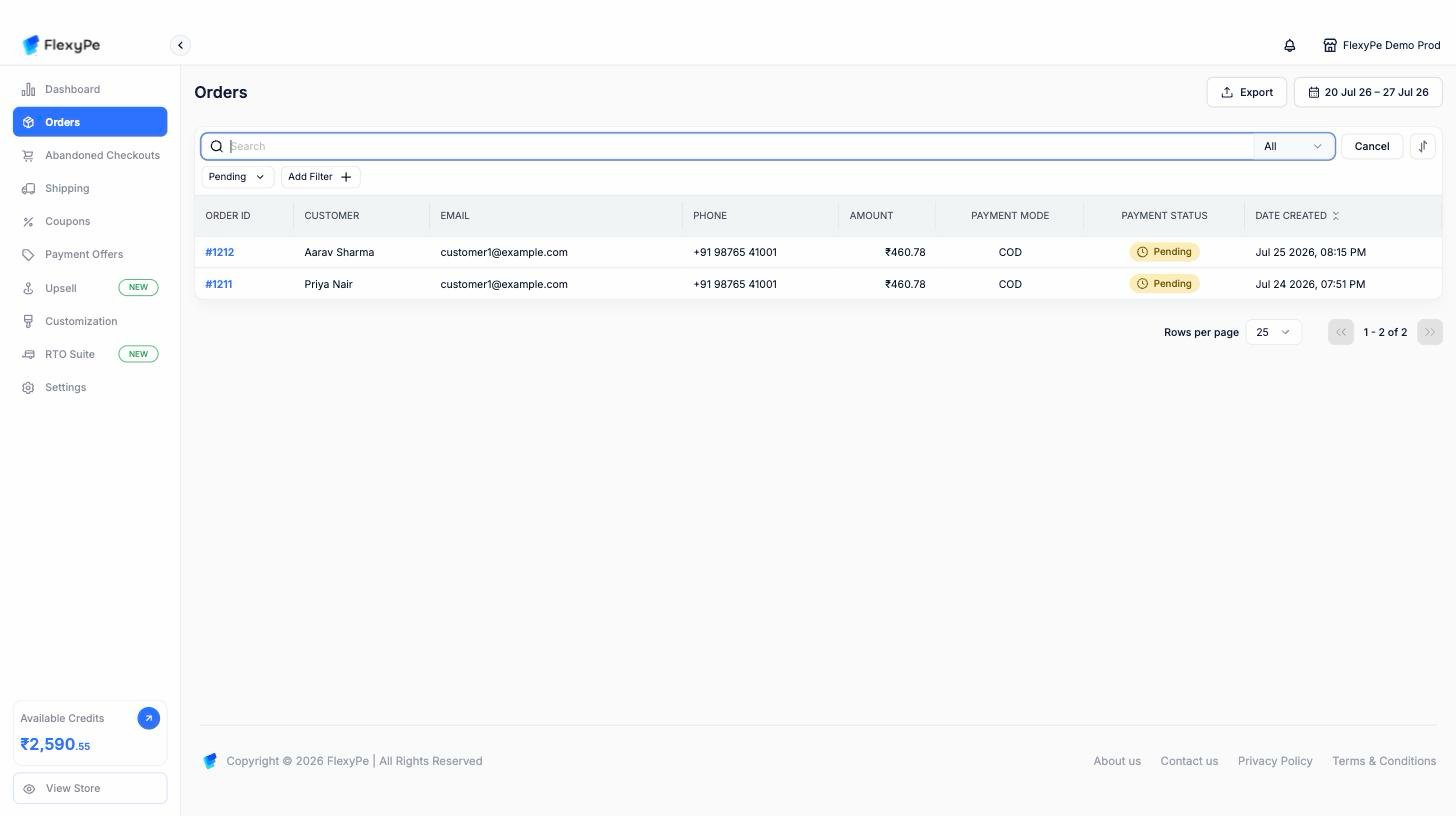
The search bar with its field selector on the right, an active Pending filter below it, and Add Filter to stack more.
Filters
Click Add Filter to pick a filter, then tick the values you want — each filter accepts several at once, and the chip shows what’s selected. Clear inside a filter’s dropdown removes that filter. Add as many as you need; they combine.Payment Status
Payment Status
- Pending — payment not yet confirmed, including COD orders awaiting collection
- Partially Paid — part of the total has been received, as with partial COD
- Paid — full amount received
- Refunded — amount returned to the customer
Payment Method
Payment Method
Payment Provider
Payment Provider
Date range
Date range
Sorting
Use the sort icon at the right of the filter bar. Choose a Sort By field — Created at date or Updated at date — and a Sort Order, ascending or descending. Newest first is the default.Order details
Opening an order shows its payment status, fulfillment status, and creation time in the header, with these panels below.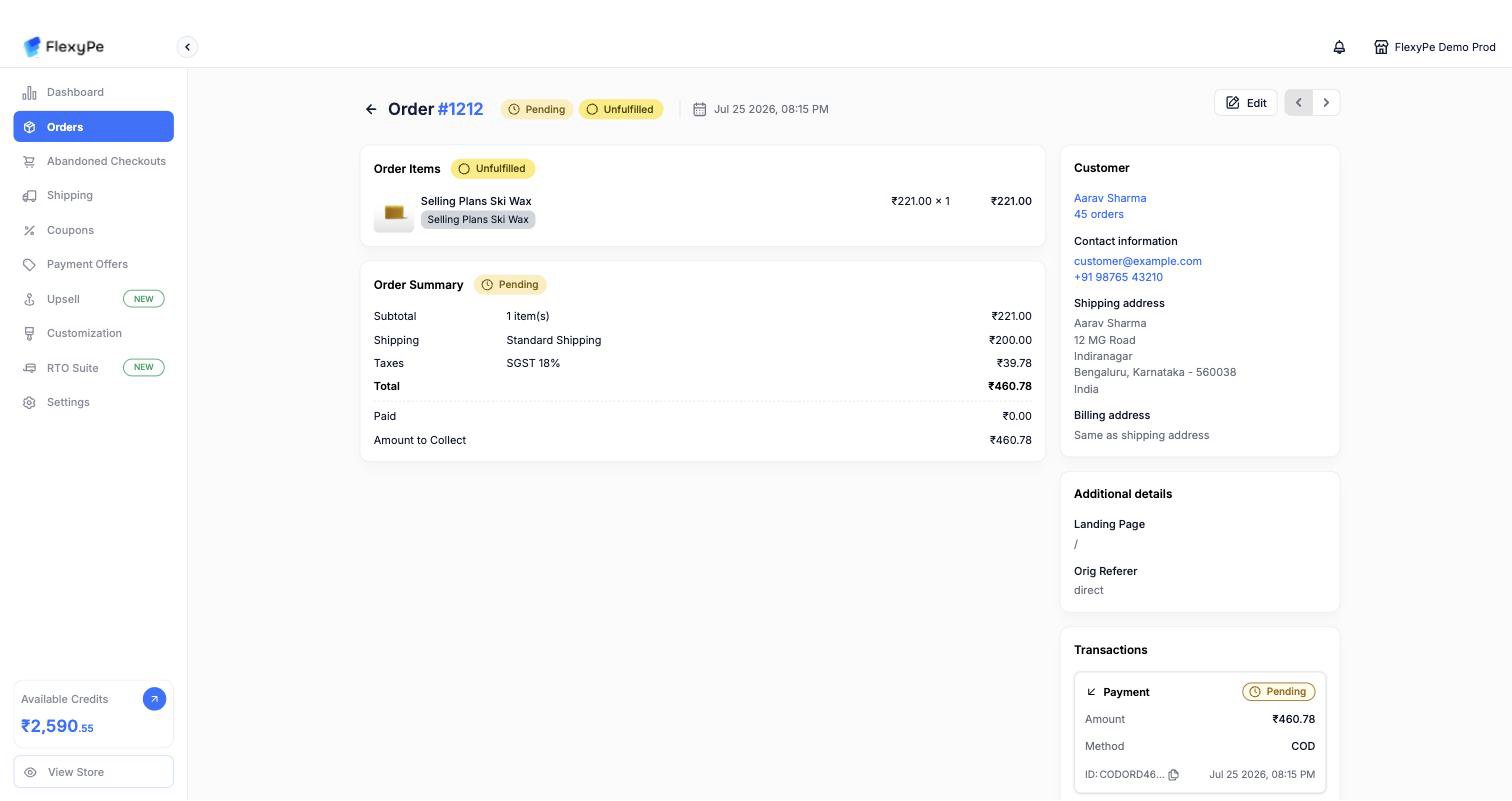
An order with its items, summary, customer, additional details, and transactions.
Items
Every product in the order with variant, image, quantity, unit price, and line total. Line-level discounts show the coupon code and the amount taken off, including bundles, Buy X Get Y groups, add-ons, and upsell items. Use Copy checkout url to grab the checkout link for that session.Order summary
The money breakdown for the order:Customer
Contact information, shipping address, and billing address, along with how many orders this customer has placed with you. GSTIN and company name appear when the customer supplied them at checkout.Transactions
Every payment and refund attempt recorded against the order, showing amount, payment method, gateway, state, and timestamp. This is where to look when a customer says they were charged but the order shows unpaid — a failed or pending transaction will be listed here.Conversion details
How the customer reached this purchase:- Total sessions — how many browsing sessions preceded the order
- Checkout visits — how many times checkout was opened
- Days to conversion — days between first visit and purchase
- UTM parameters — source, medium, campaign, term, and content, plus
gclidandfbclidfor Google and Meta ad attribution
Additional details
Payment method, landing page, referring URL, and the customer’s device and browser for the session that produced the order.Exit checkout reasons
If the customer was shown an exit survey during checkout and answered it, their selected options and any free-text feedback appear here.Editing an order
Orders can be edited from the order page — add or remove products, change quantities, apply discounts, and adjust shipping charges. Changes sync back to your store.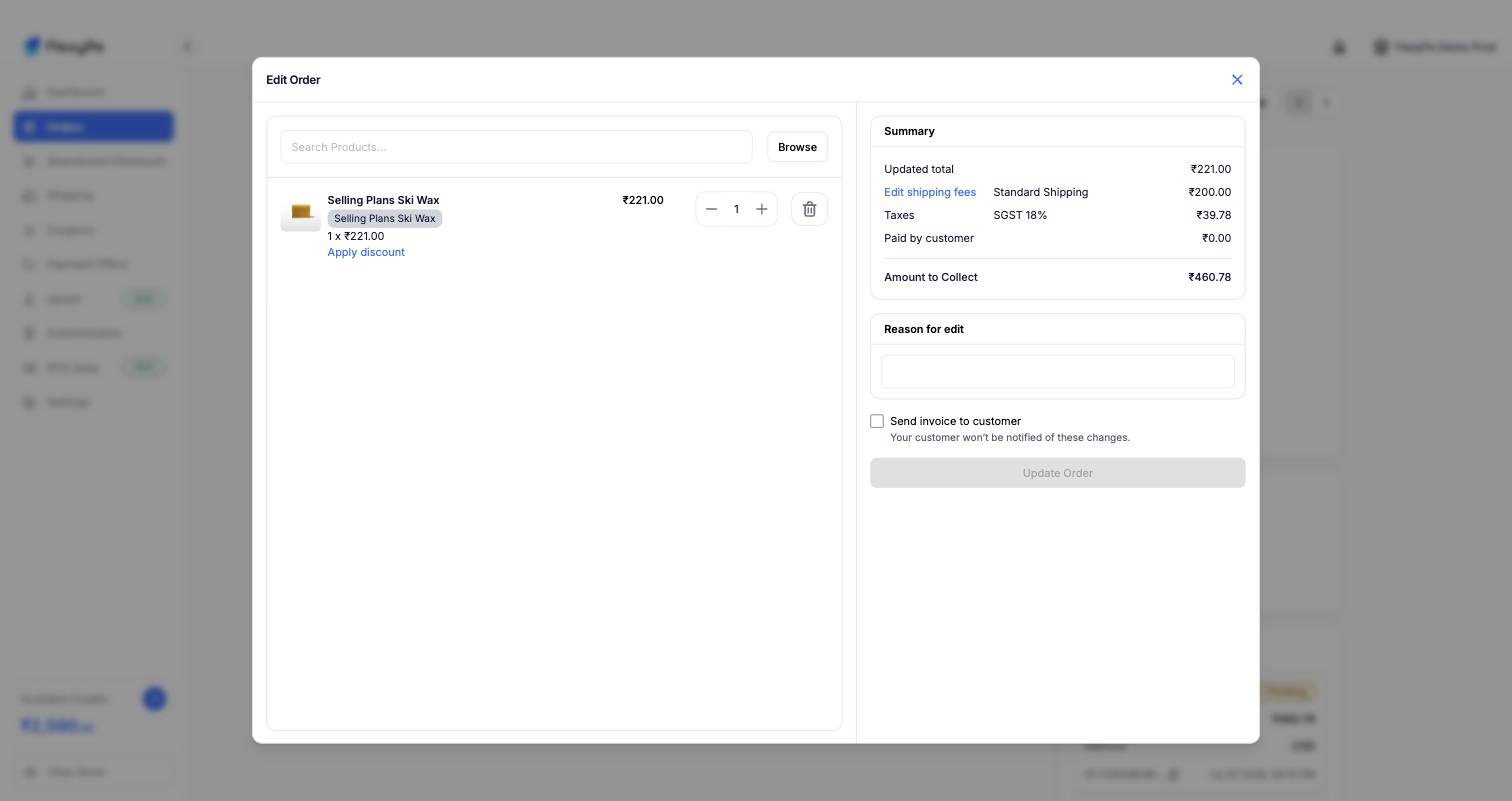
The Edit Order dialog — items on the left, a live summary and the confirmation controls on the right.
Open the editor
Change the items
- Add products — use Search Products or Browse to pick variants to add
- Change quantity — use the stepper on any editable line
- Remove — delete a line with the bin icon
Apply a discount
Adjust shipping
Review and confirm
- Enter a Reason for edit so the change is traceable later.
- Tick Send invoice to customer if the customer should be told about the change. Leave it unticked and, as the dialog notes, your customer won’t be notified.
Exporting orders
Export the orders matching your current filters as a CSV, delivered by email.Set your filters
Click Export
Check your inbox
Frequently asked questions
Why does an order show as Pending?
Why does an order show as Pending?
An order is missing from the list.
An order is missing from the list.
Why can't I edit this order?
Why can't I edit this order?
Does editing an order in FlexyPe update my store?
Does editing an order in FlexyPe update my store?
Where do I see why a customer nearly abandoned this order?
Where do I see why a customer nearly abandoned this order?