> ## Documentation Index
> Fetch the complete documentation index at: https://docs.flexype.io/llms.txt
> Use this file to discover all available pages before exploring further.
# Shopify
> Integrate FlexyPe's 1-click checkout into your Shopify store
FlexyPe replaces your Shopify checkout with a high-converting, 1-click experience. Onboarding is **fully managed** — you share collaborator access, our team builds the integration on a duplicate of your theme, and you approve a preview before going live.
Onboarding typically completes within **24–48 hours**. You'll work alongside the FlexyPe team throughout — most steps below happen in your Shopify admin or the FlexyPe app.
## At a glance
Share a Shopify collaboration code so we can access your store.
Grant permissions and install the FlexyPe app.
Complete business, team, and payment details.
Connect payment gateways and advertising tools.
Review the preview and we make your checkout live.
Reach the FlexyPe team any time during setup.
## Collaborate Store with FlexyPe
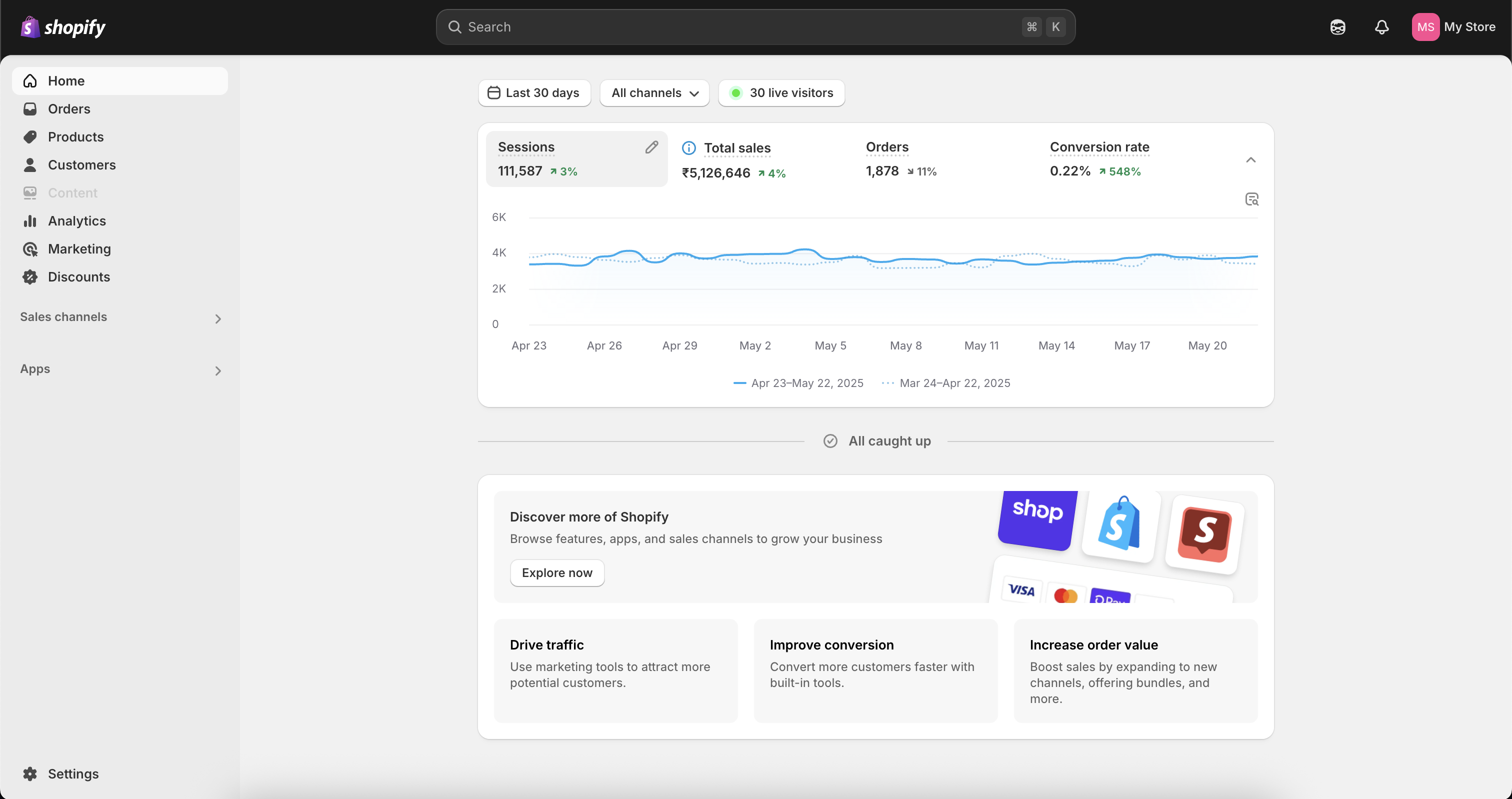 * Log in to your Shopify Admin account.
* Click **Settings** in the bottom-left panel.
* Log in to your Shopify Admin account.
* Click **Settings** in the bottom-left panel.
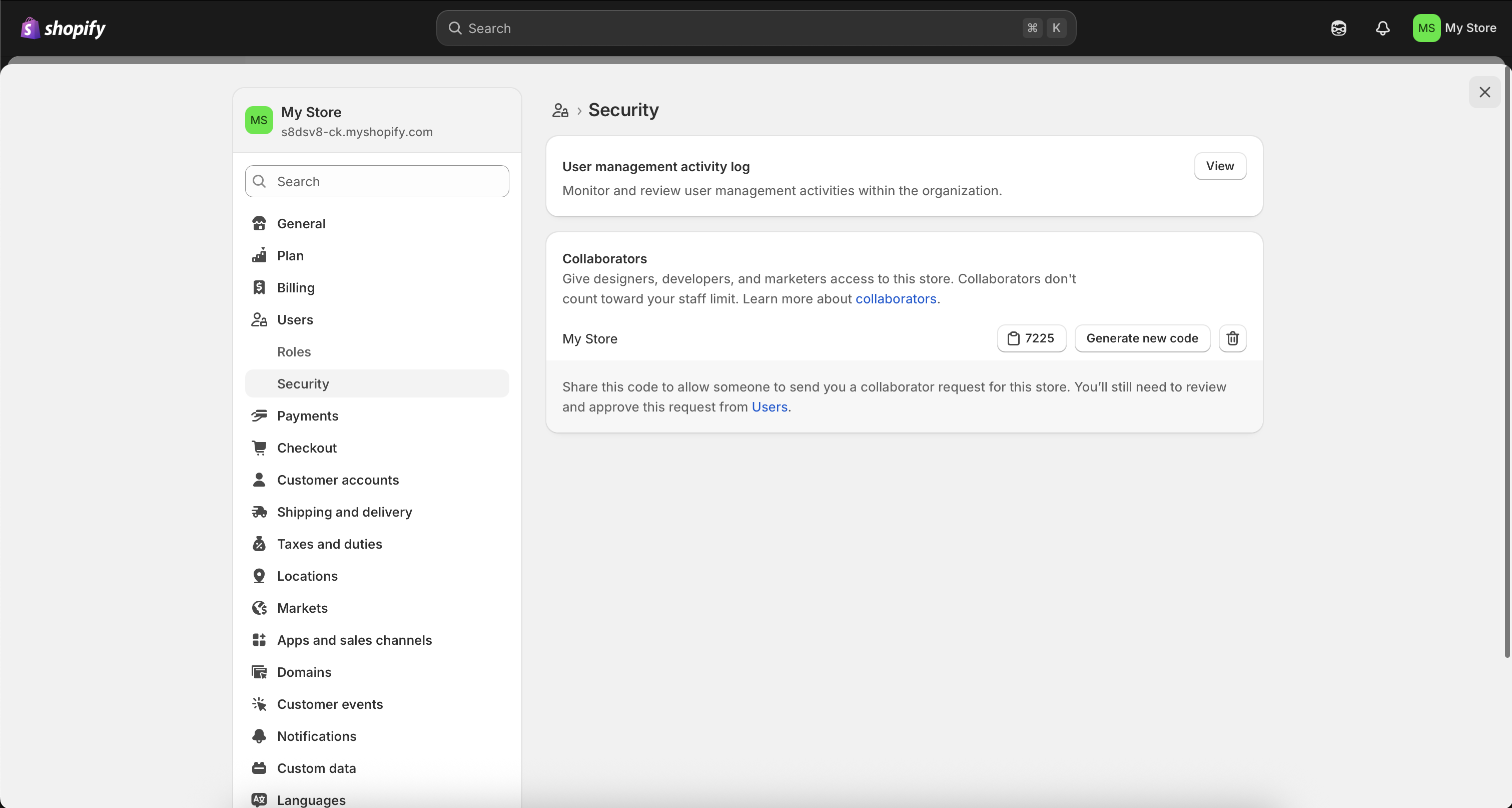 * Go to **Users** → **Security** and scroll down to the **Collaborators** section.
* Copy the **Collaboration Code** and share it along with your **Store URL** so we can send a collaboration request.
Do **not** click **Generate New Code** after sharing the collaboration code until the FlexyPe checkout integration is fully completed.
* Go to **Users** → **Security** and scroll down to the **Collaborators** section.
* Copy the **Collaboration Code** and share it along with your **Store URL** so we can send a collaboration request.
Do **not** click **Generate New Code** after sharing the collaboration code until the FlexyPe checkout integration is fully completed.
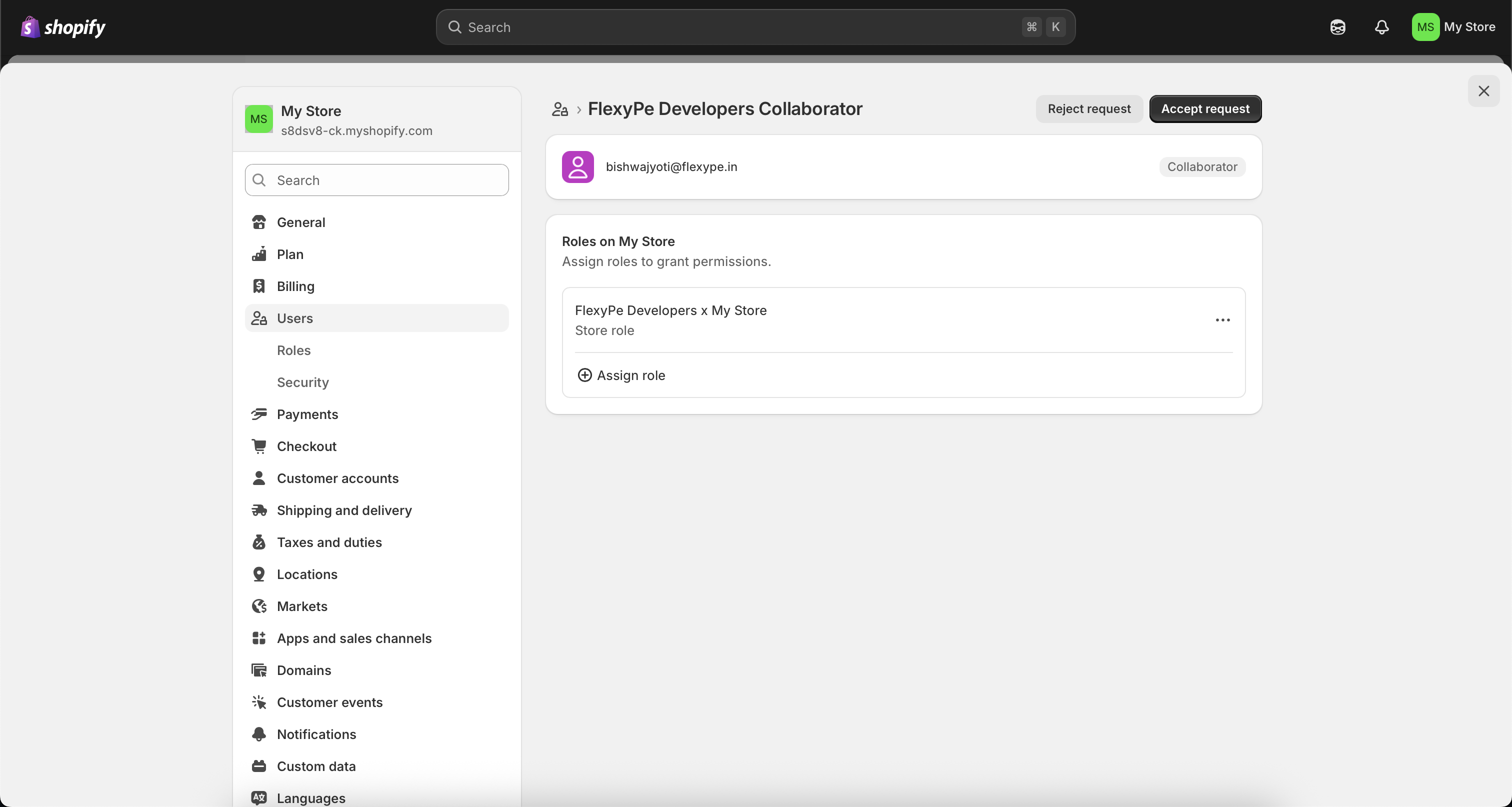 * You'll receive a collaboration request from **FlexyPe Developers**.
* Accept the request to begin onboarding.
The collaboration code lets us access your Shopify store to assist efficiently, both now and in the future. Our access is used solely for store-related support.
## Installation of FlexyPe app
* You'll receive a collaboration request from **FlexyPe Developers**.
* Accept the request to begin onboarding.
The collaboration code lets us access your Shopify store to assist efficiently, both now and in the future. Our access is used solely for store-related support.
## Installation of FlexyPe app
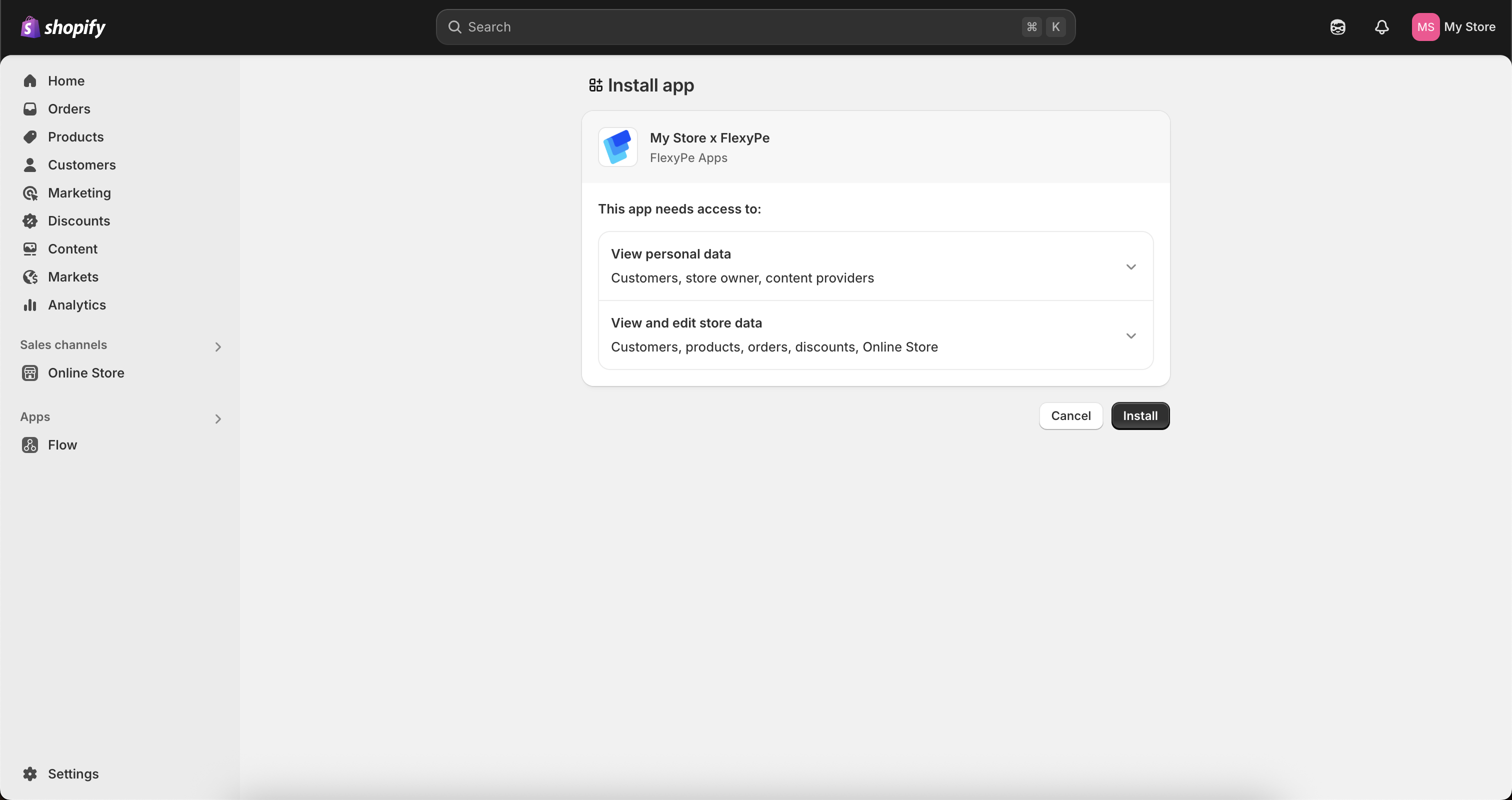 * Once you accept the collaboration request, we'll send you the installation link.
* Click the link and follow the prompts to grant the necessary permissions.
* Click **Install** to complete the app installation.
## Get Started with FlexyPe app
* Once you accept the collaboration request, we'll send you the installation link.
* Click the link and follow the prompts to grant the necessary permissions.
* Click **Install** to complete the app installation.
## Get Started with FlexyPe app
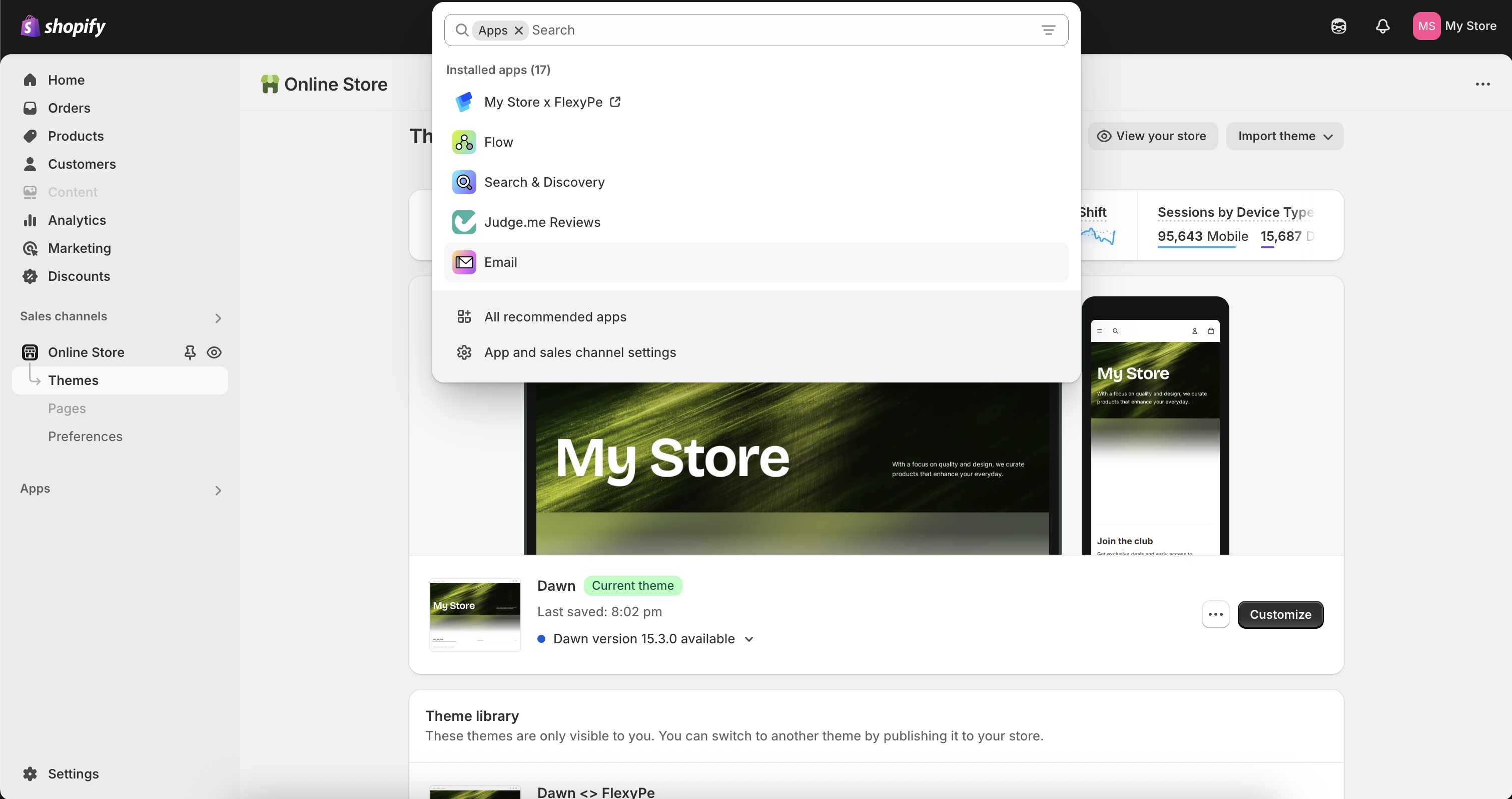 * Open your Shopify Admin account.
* Click **Apps** in the left panel and open the **FlexyPe** app.
* Open your Shopify Admin account.
* Click **Apps** in the left panel and open the **FlexyPe** app.
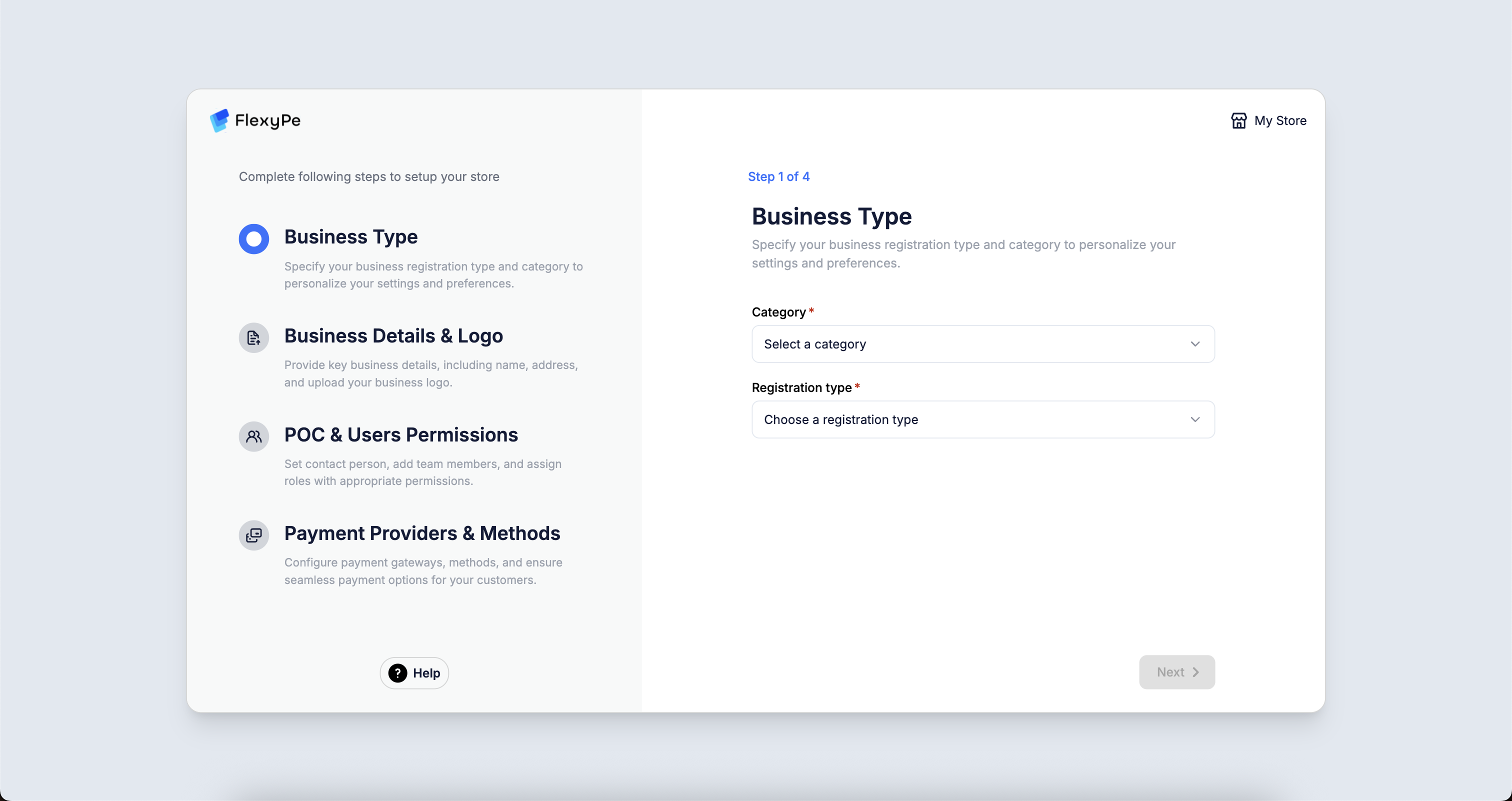 Complete these sections to finish setting up your store:
* Business Type
* Business Details
* Business Team
* Payment Setup
Add your GST details, including GSTIN, to claim GST returns.
## Complete Pre-Integration Setup
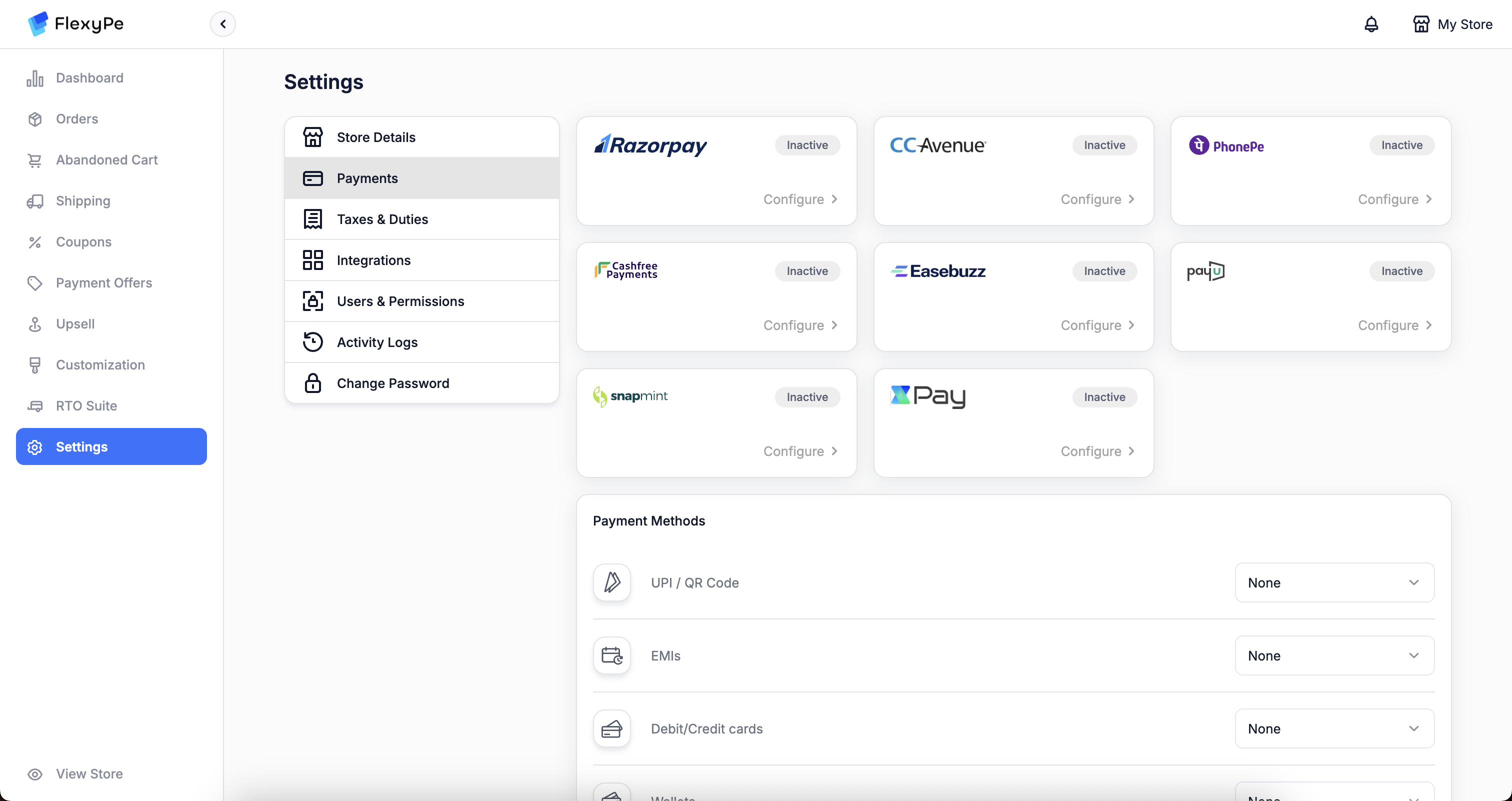
Select the gateways you want to enable for each **Payment Method**. If you already have **active accounts** with any of the gateways below, here's what each needs:
Credentials are available in the PayU dashboard. **Webhook setup is mandatory.** Configuration completes instantly once done. [View setup →](/integrations/payment/payu)
Credentials are available in the Cashfree dashboard. **Webhook setup is required.** Configuration completes instantly thereafter. [View setup →](/integrations/payment/cashfree)
Credentials are available in the XPay dashboard. **Webhook configuration is required.** Setup completes instantly after this. [View setup →](/integrations/payment/xpay)
Credentials are shared by the Easebuzz team. **Webhook configuration is required.** Once credentials are received, configuration completes instantly. [View setup →](/integrations/payment/easebuzz)
Requires account authorization; **no webhook setup needed.** Setup completes instantly. [View setup →](/integrations/payment/razorpay)
Share your **MID** with the FlexyPe team. Mapping is handled manually and typically takes **up to a week**. [View setup →](/integrations/payment/phonepe)
If you didn't configure payment gateways right after installing the app, you can still do it later from your FlexyPe dashboard. Haven't completed setup yet? Visit [Payment Providers](/integrations/payment/razorpay).
Complete these sections to finish setting up your store:
* Business Type
* Business Details
* Business Team
* Payment Setup
Add your GST details, including GSTIN, to claim GST returns.
## Complete Pre-Integration Setup
Select the gateways you want to enable for each **Payment Method**. If you already have **active accounts** with any of the gateways below, here's what each needs:
Credentials are available in the PayU dashboard. **Webhook setup is mandatory.** Configuration completes instantly once done. [View setup →](/integrations/payment/payu)
Credentials are available in the Cashfree dashboard. **Webhook setup is required.** Configuration completes instantly thereafter. [View setup →](/integrations/payment/cashfree)
Credentials are available in the XPay dashboard. **Webhook configuration is required.** Setup completes instantly after this. [View setup →](/integrations/payment/xpay)
Credentials are shared by the Easebuzz team. **Webhook configuration is required.** Once credentials are received, configuration completes instantly. [View setup →](/integrations/payment/easebuzz)
Requires account authorization; **no webhook setup needed.** Setup completes instantly. [View setup →](/integrations/payment/razorpay)
Share your **MID** with the FlexyPe team. Mapping is handled manually and typically takes **up to a week**. [View setup →](/integrations/payment/phonepe)
If you didn't configure payment gateways right after installing the app, you can still do it later from your FlexyPe dashboard. Haven't completed setup yet? Visit [Payment Providers](/integrations/payment/razorpay).
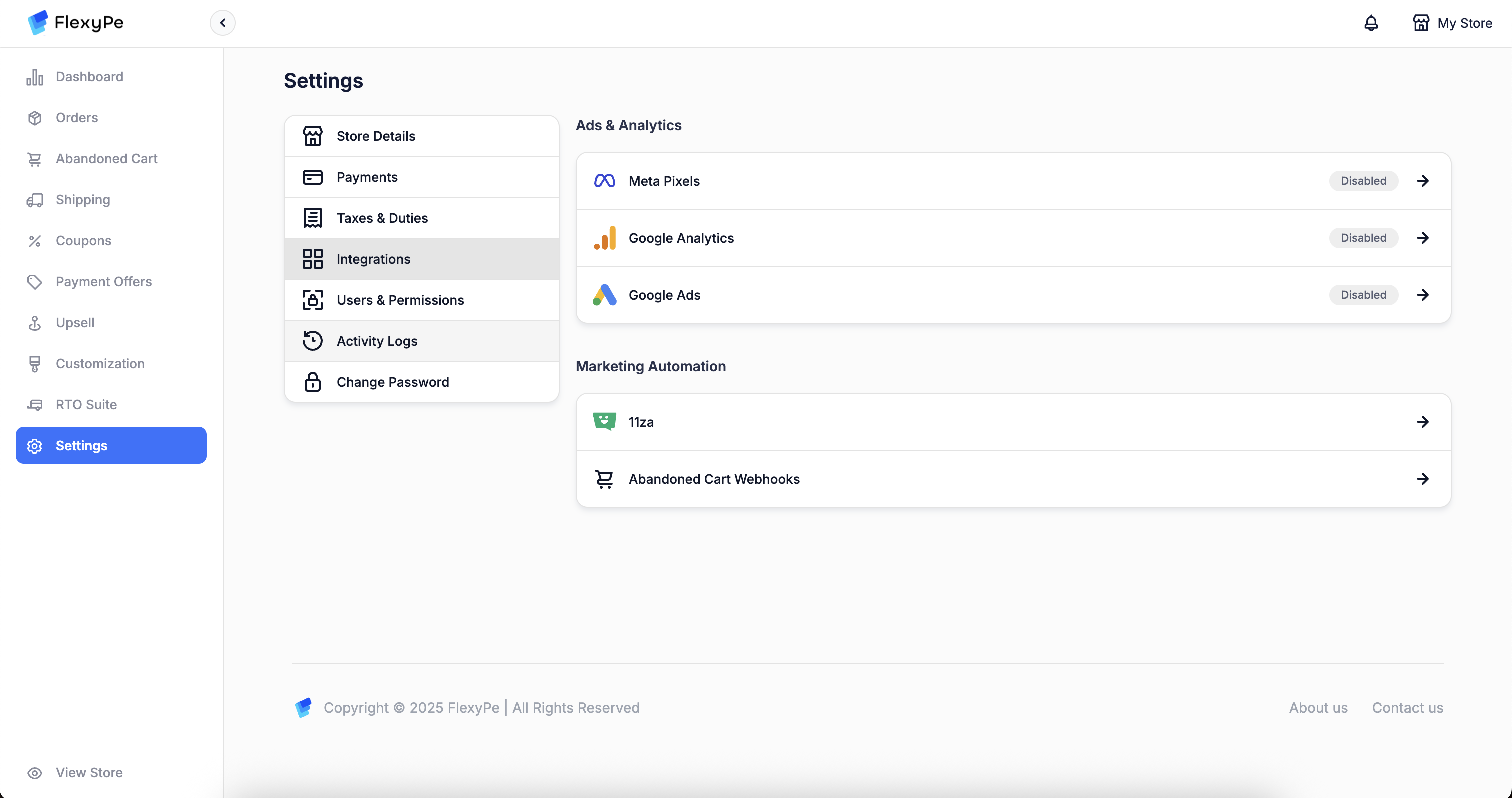 Connect **Meta Pixel**, **Google Ads**, and **Google Analytics** if you plan to run ads. For step-by-step instructions, see [Analytics](/integrations/analytics/meta).
* Review the key features available within the app.
* Adjust settings to tailor the app to your business requirements.
Connect **Meta Pixel**, **Google Ads**, and **Google Analytics** if you plan to run ads. For step-by-step instructions, see [Analytics](/integrations/analytics/meta).
* Review the key features available within the app.
* Adjust settings to tailor the app to your business requirements.
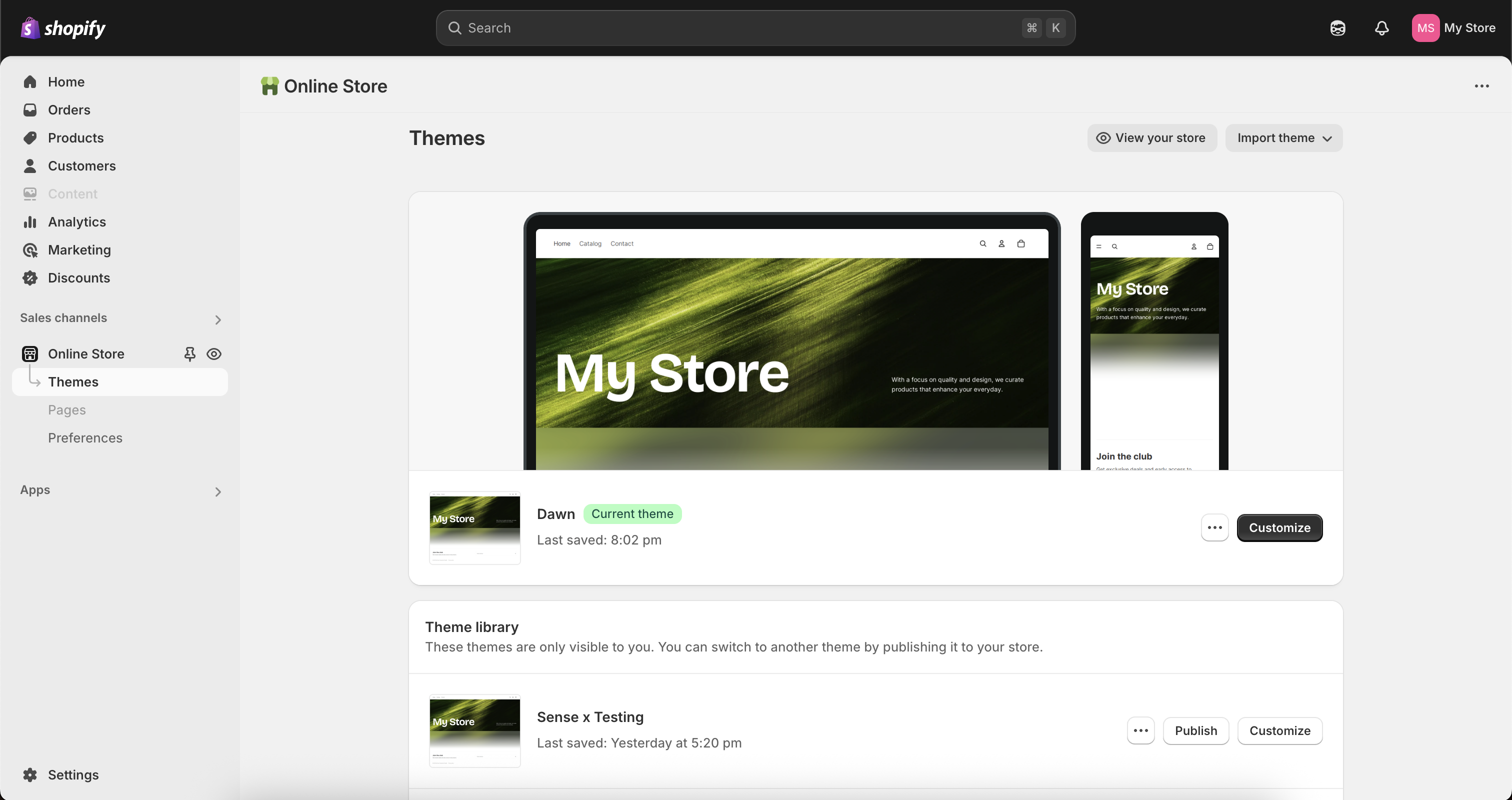 * Let us know which theme you'd like duplicated for the integration.
* If no theme is specified, we'll duplicate your live theme and integrate there.
## Theme Setup to Go Live
* Let us know which theme you'd like duplicated for the integration.
* If no theme is specified, we'll duplicate your live theme and integrate there.
## Theme Setup to Go Live
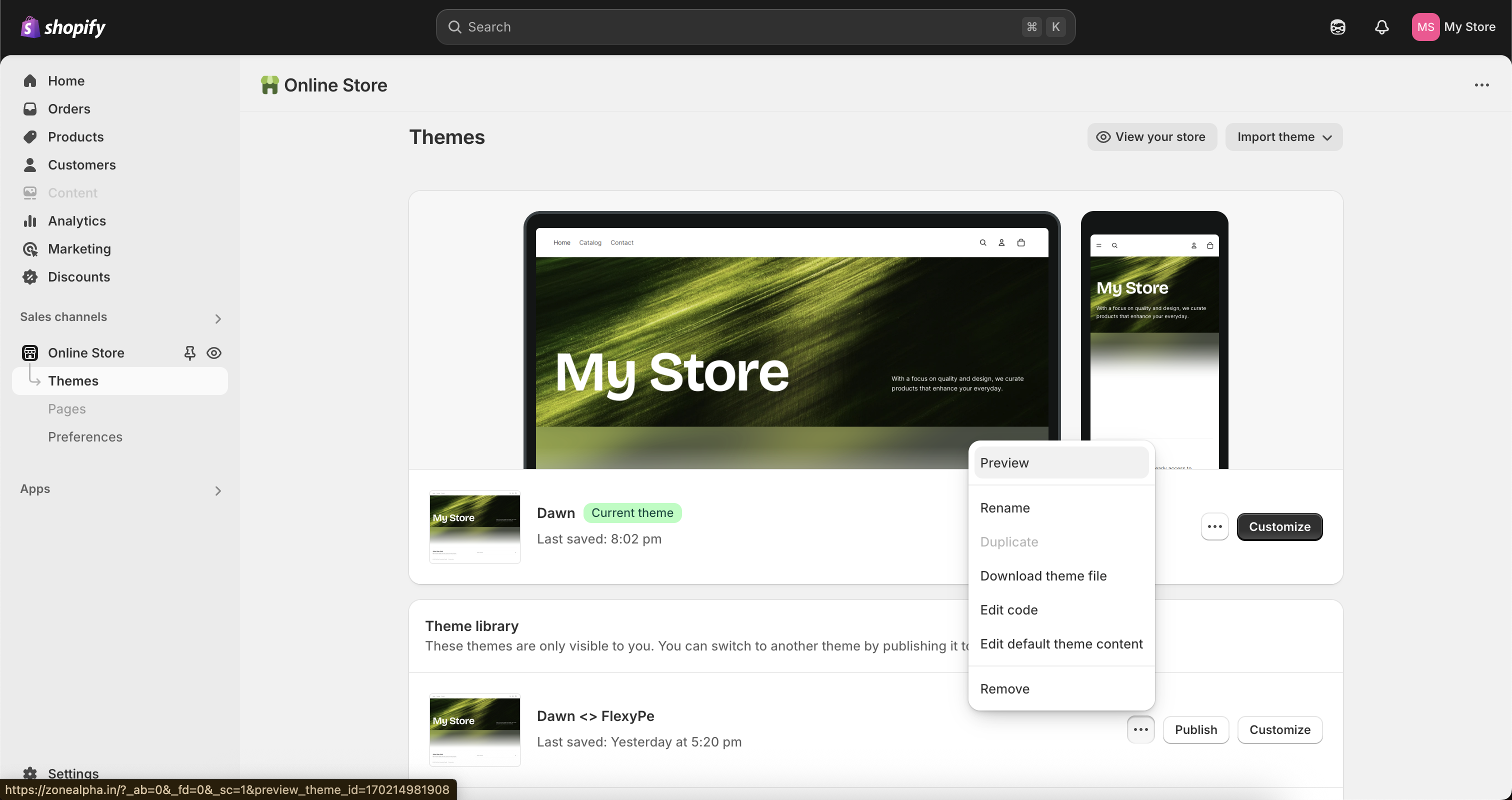 * Within 12 hours of confirming your theme, we'll provide a preview / testing link.
* Use it to review and verify the integration before final approval.
* Within 12 hours of confirming your theme, we'll provide a preview / testing link.
* Use it to review and verify the integration before final approval.
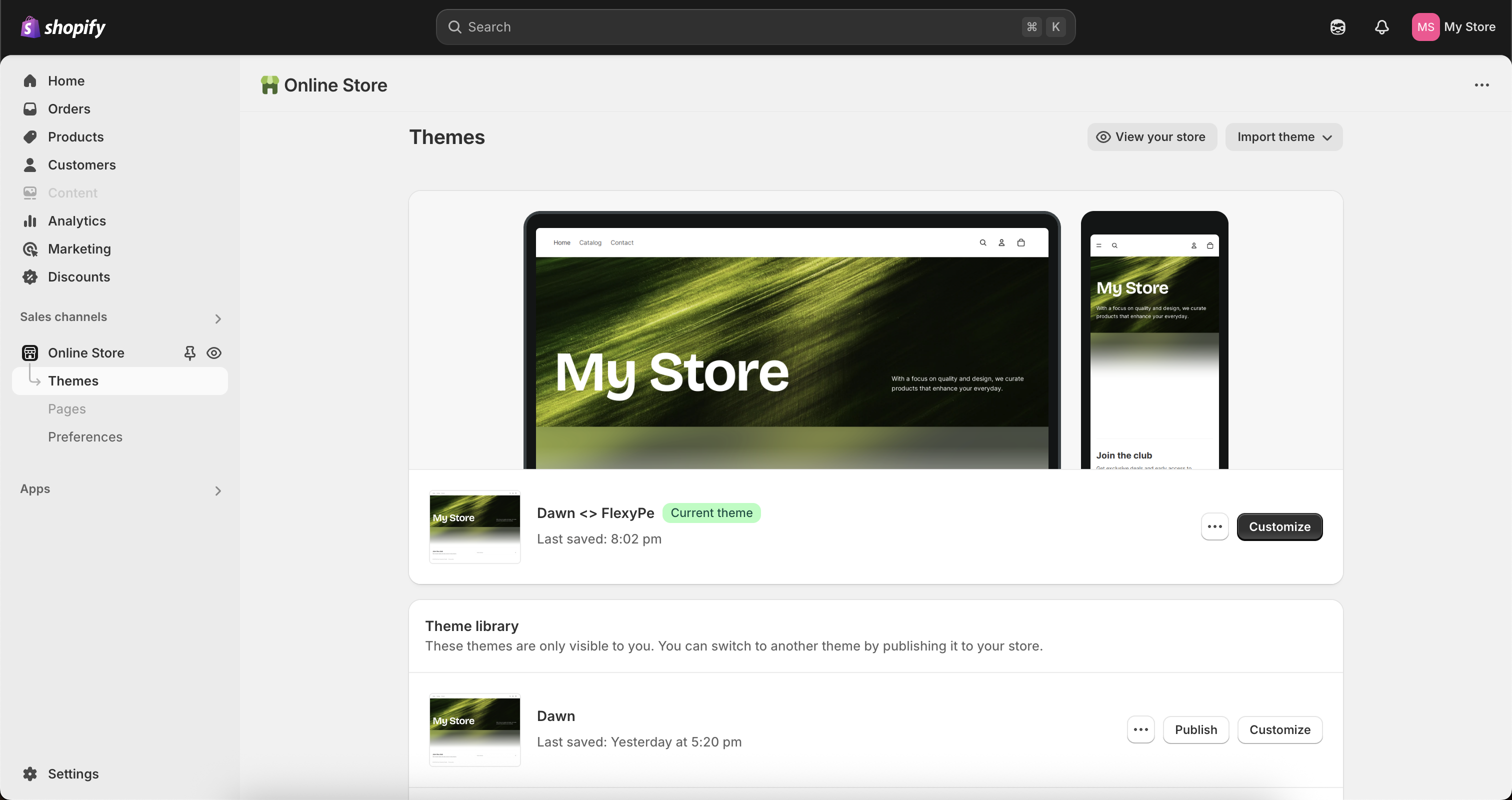 Once you've reviewed the testing link, confirm everything looks good and we'll make the integration live.
## Keep Growing with FlexyPe
We typically complete onboarding within **24–48 hours**, and we're here to support you during and after setup.
Stay updated on new features, get expert tips, and connect with other merchants.
If you haven't signed up with a payment gateway yet, let us know — we'll connect you with our trusted partners.
While we're happy to refer you to a payment provider, all technical support or queries about the gateway should go to their dedicated support team for the best assistance.
## Need help?
Stuck on any step? Reach out to our team at [hello@flexype.io](mailto:hello@flexype.io).
Once you've reviewed the testing link, confirm everything looks good and we'll make the integration live.
## Keep Growing with FlexyPe
We typically complete onboarding within **24–48 hours**, and we're here to support you during and after setup.
Stay updated on new features, get expert tips, and connect with other merchants.
If you haven't signed up with a payment gateway yet, let us know — we'll connect you with our trusted partners.
While we're happy to refer you to a payment provider, all technical support or queries about the gateway should go to their dedicated support team for the best assistance.
## Need help?
Stuck on any step? Reach out to our team at [hello@flexype.io](mailto:hello@flexype.io).