> ## Documentation Index
> Fetch the complete documentation index at: https://docs.flexype.io/llms.txt
> Use this file to discover all available pages before exploring further.
# Razorpay
Integrating Razorpay with FlexyPe enables fast, secure, and reliable payment processing directly through your checkout. With just a few steps, you can start accepting payments and ensure a smooth transaction experience for your customers.
## Connect Razorpay with FlexyPe
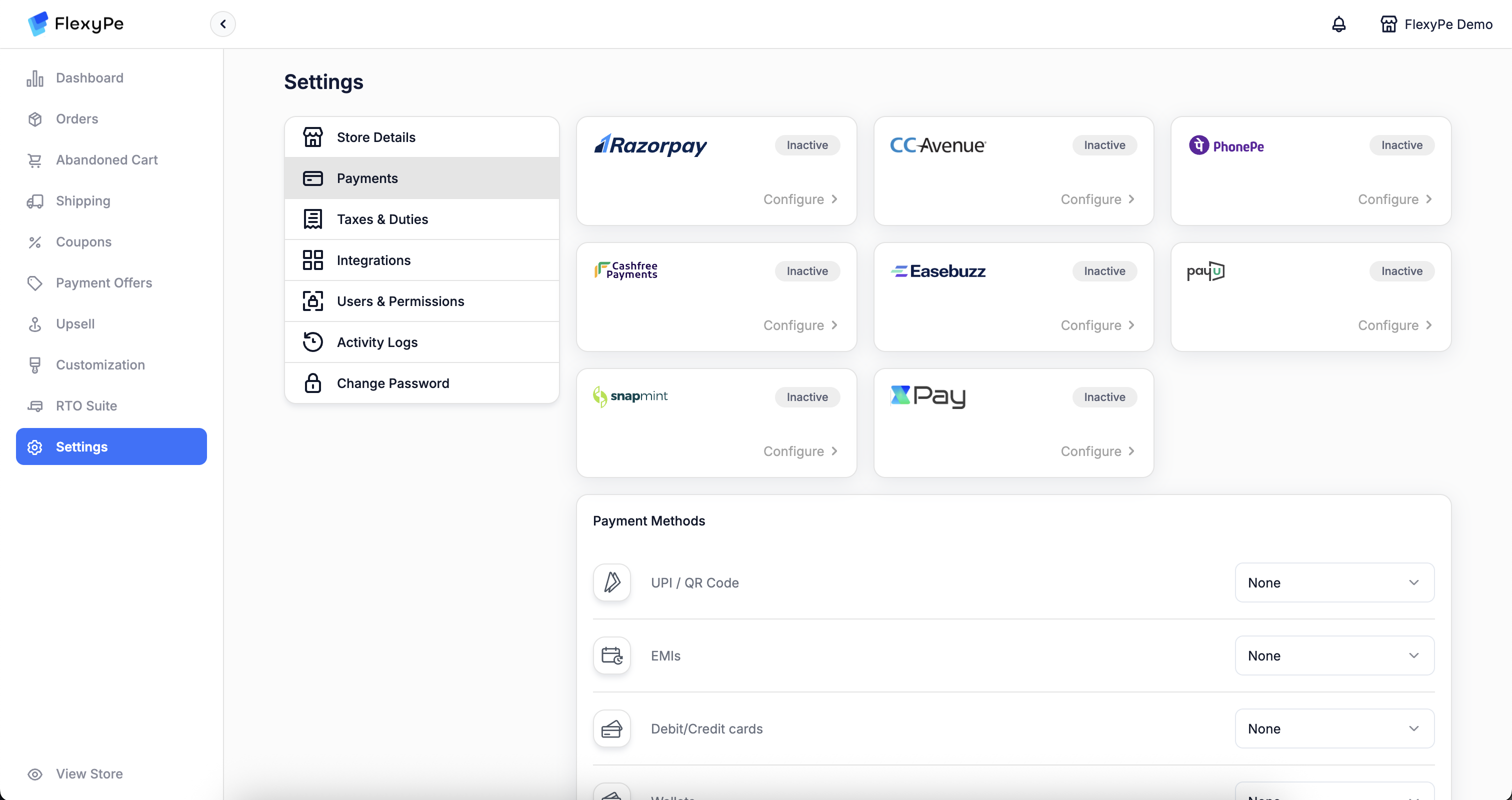 * Log in to your [FlexyPe Dashboard](https://dashboard.flexype.io).
* Click on the Settings menu and select Payments.
* Log in to your [FlexyPe Dashboard](https://dashboard.flexype.io).
* Click on the Settings menu and select Payments.
 * Click the Configure button located within the Razorpay card to proceed with setup.
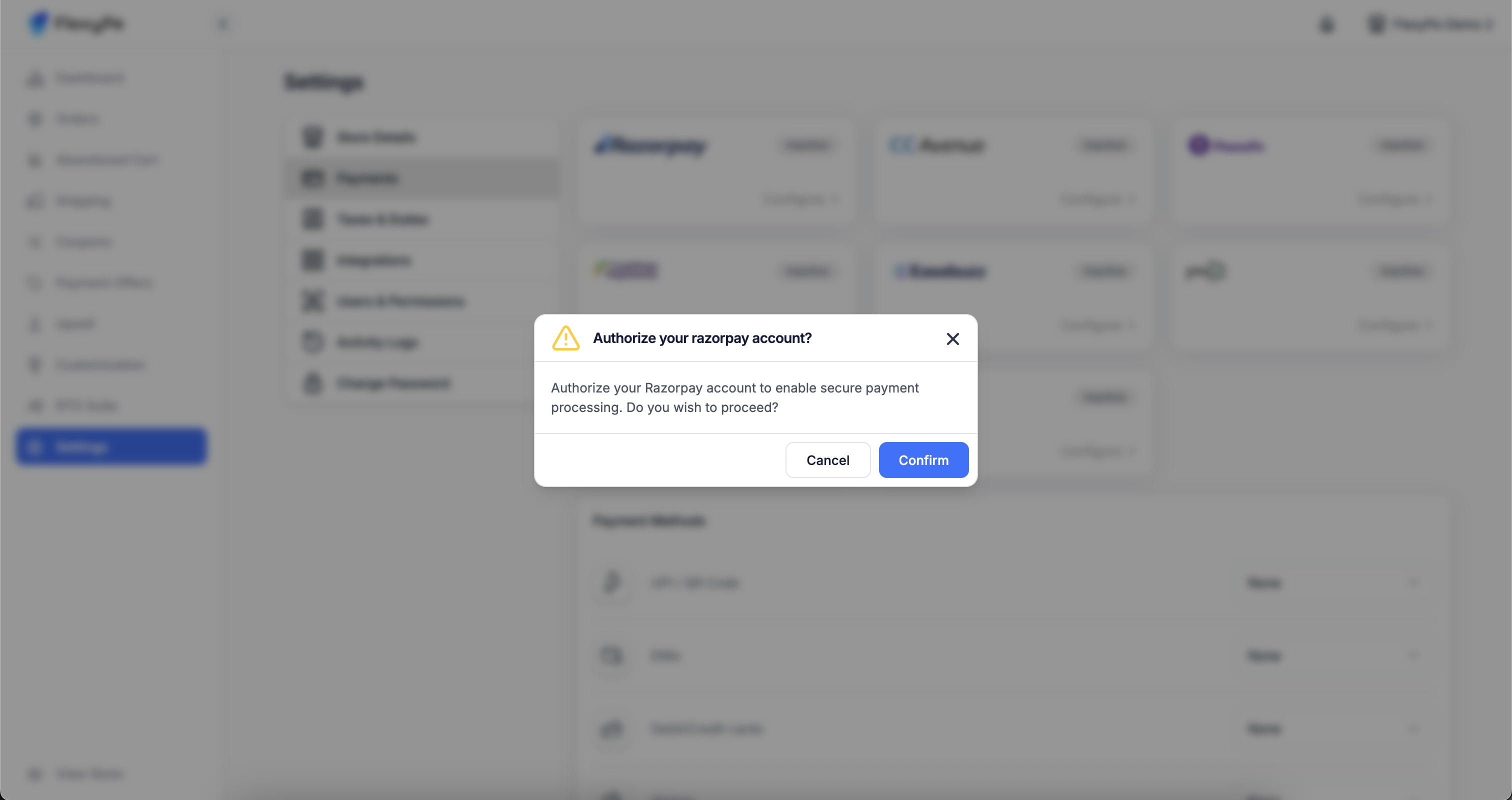
* Click **Confirm** to authorize your Razorpay account and securely connect it with FlexyPe.
Do not disconnect if the payment provider is in use
* Click the Configure button located within the Razorpay card to proceed with setup.
* Click **Confirm** to authorize your Razorpay account and securely connect it with FlexyPe.
Do not disconnect if the payment provider is in use
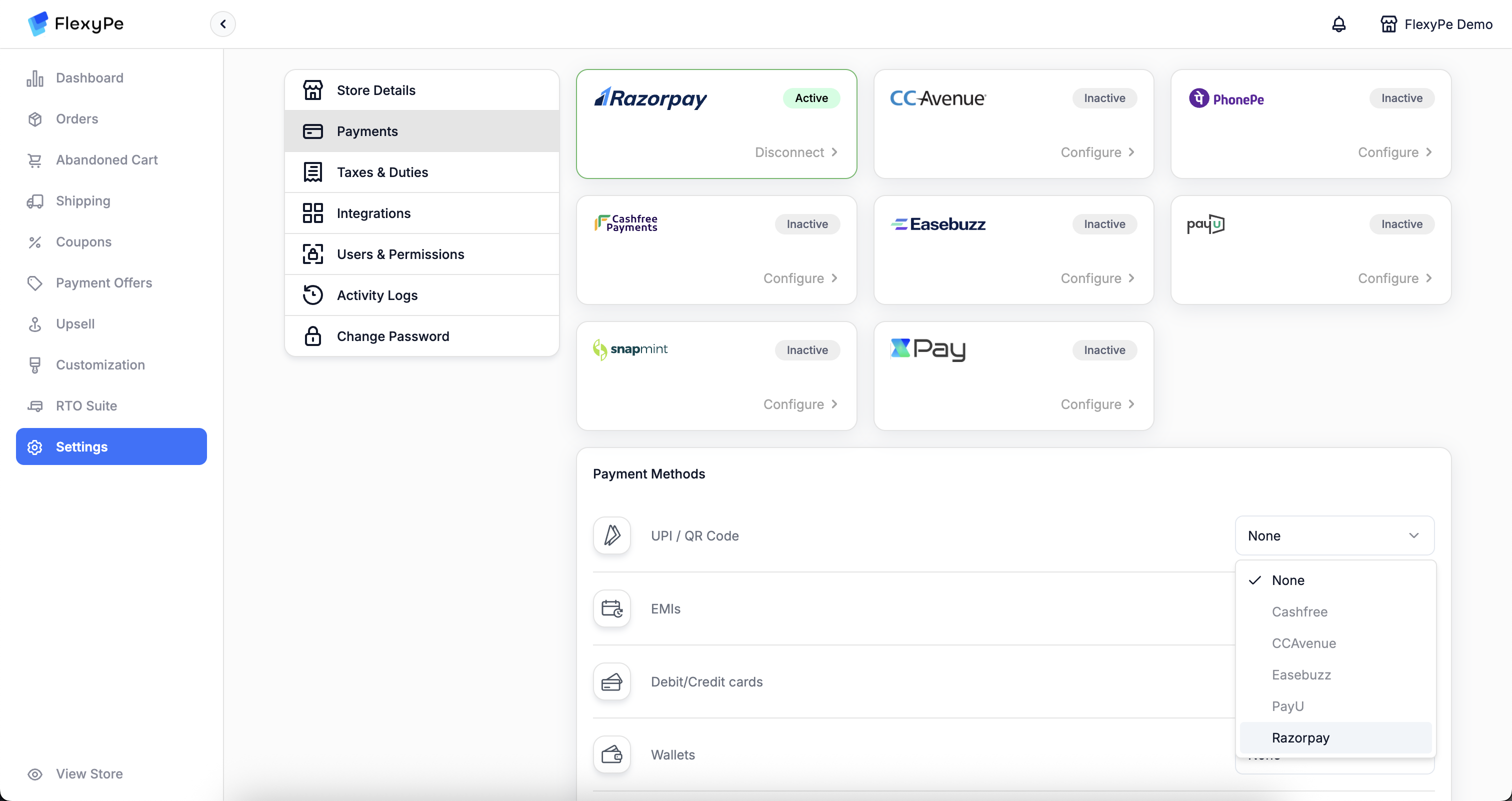 * In the section below, you'll see a list of payment methods.
* If you want to use Razorpay to handle any of these methods, change the provider to **Razorpay**.
* Repeat this for each method you wish to route through Razorpay.
Make sure Razorpay is fully configured before selecting it as a provider.
* After authorizing your Razorpay account, the setup is complete.
* FlexyPe is now connected to your Shopify store and ready to accept payments.
Webhooks setup is not required.
By following these steps, you’ll successfully integrate Razorpay with FlexyPe, enabling secure payment processing and a smooth checkout experience.
* In the section below, you'll see a list of payment methods.
* If you want to use Razorpay to handle any of these methods, change the provider to **Razorpay**.
* Repeat this for each method you wish to route through Razorpay.
Make sure Razorpay is fully configured before selecting it as a provider.
* After authorizing your Razorpay account, the setup is complete.
* FlexyPe is now connected to your Shopify store and ready to accept payments.
Webhooks setup is not required.
By following these steps, you’ll successfully integrate Razorpay with FlexyPe, enabling secure payment processing and a smooth checkout experience.