> ## Documentation Index
> Fetch the complete documentation index at: https://docs.flexype.io/llms.txt
> Use this file to discover all available pages before exploring further.
# Easebuzz
Integrating Easebuzz with FlexyPe enables fast, secure, and reliable payment processing directly through your checkout. With just a few steps, you can start accepting payments and ensure a smooth transaction experience for your customers.
## Getting the Key and Salt
* The **Key** and **Salt** will be shared with you via email by the Easebuzz team.
* Check your inbox for an email containing these credentials and keep them handy for configuration.
## Integrate Easebuzz with FlexyPe
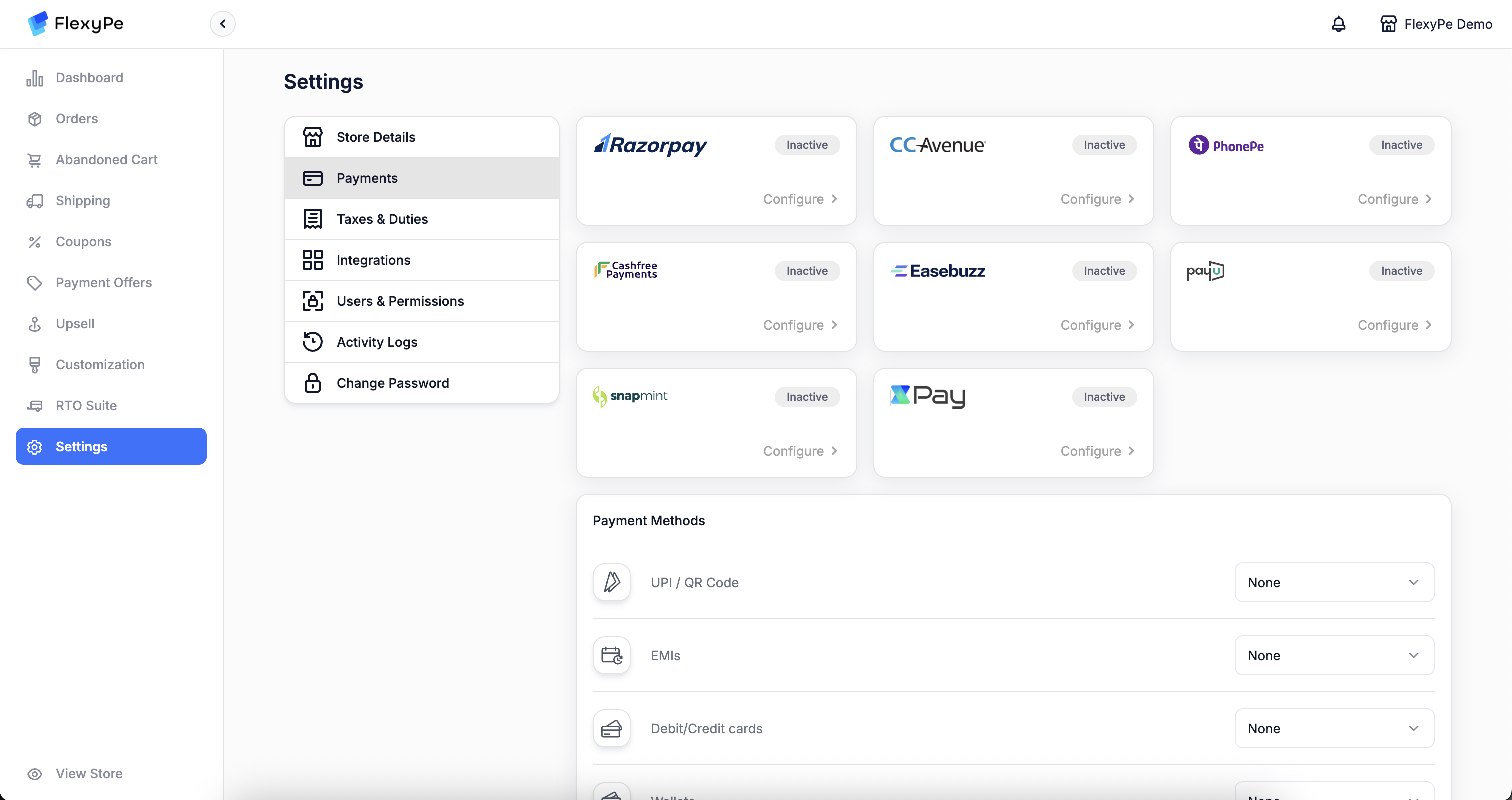 * Log in to [Easebuzz Dashboard](https://auth.easebuzz.in/easebuzz/login).
* Click on Developer on the top right corner.
* Log in to [Easebuzz Dashboard](https://auth.easebuzz.in/easebuzz/login).
* Click on Developer on the top right corner.
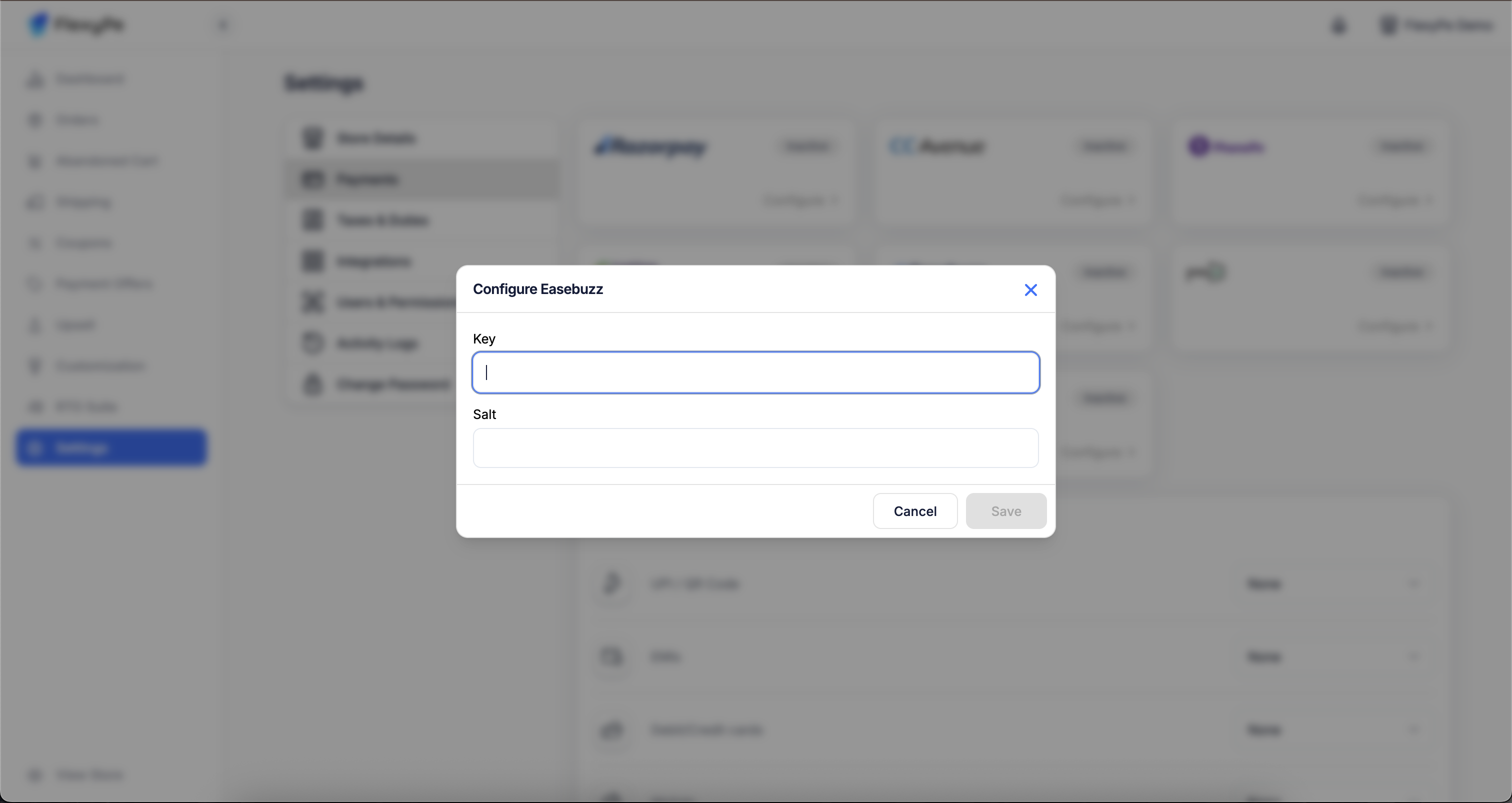 * Click the Configure button located within the Easebuzz card to proceed with setup.
* Paste the copied **Key** into the designated field.
* Paste the copied **Salt** into the designated field.
* Click Save to complete the configuration.
Do not delete the credentials if the payment provider is in use
* Click the Configure button located within the Easebuzz card to proceed with setup.
* Paste the copied **Key** into the designated field.
* Paste the copied **Salt** into the designated field.
* Click Save to complete the configuration.
Do not delete the credentials if the payment provider is in use
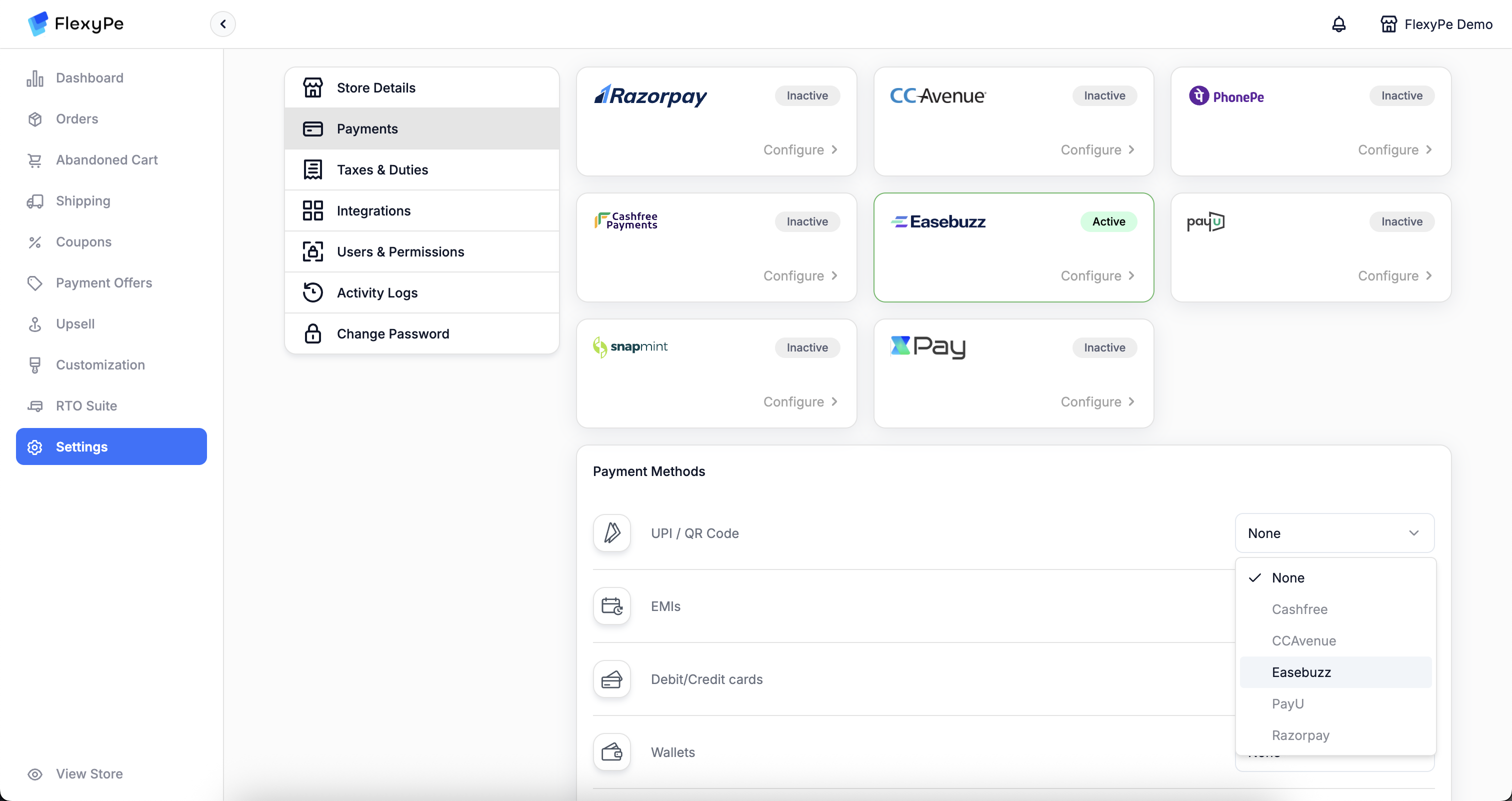 * In the section below, you'll see a list of payment methods.
* If you want to use Easebuzz to handle any of these methods, change the provider to **Easebuzz**.
* Repeat this for each method you wish to route through Easebuzz.
Make sure Easebuzz is fully configured before selecting it as a provider.
## SetUp Easebuzz Webhooks
* In the section below, you'll see a list of payment methods.
* If you want to use Easebuzz to handle any of these methods, change the provider to **Easebuzz**.
* Repeat this for each method you wish to route through Easebuzz.
Make sure Easebuzz is fully configured before selecting it as a provider.
## SetUp Easebuzz Webhooks
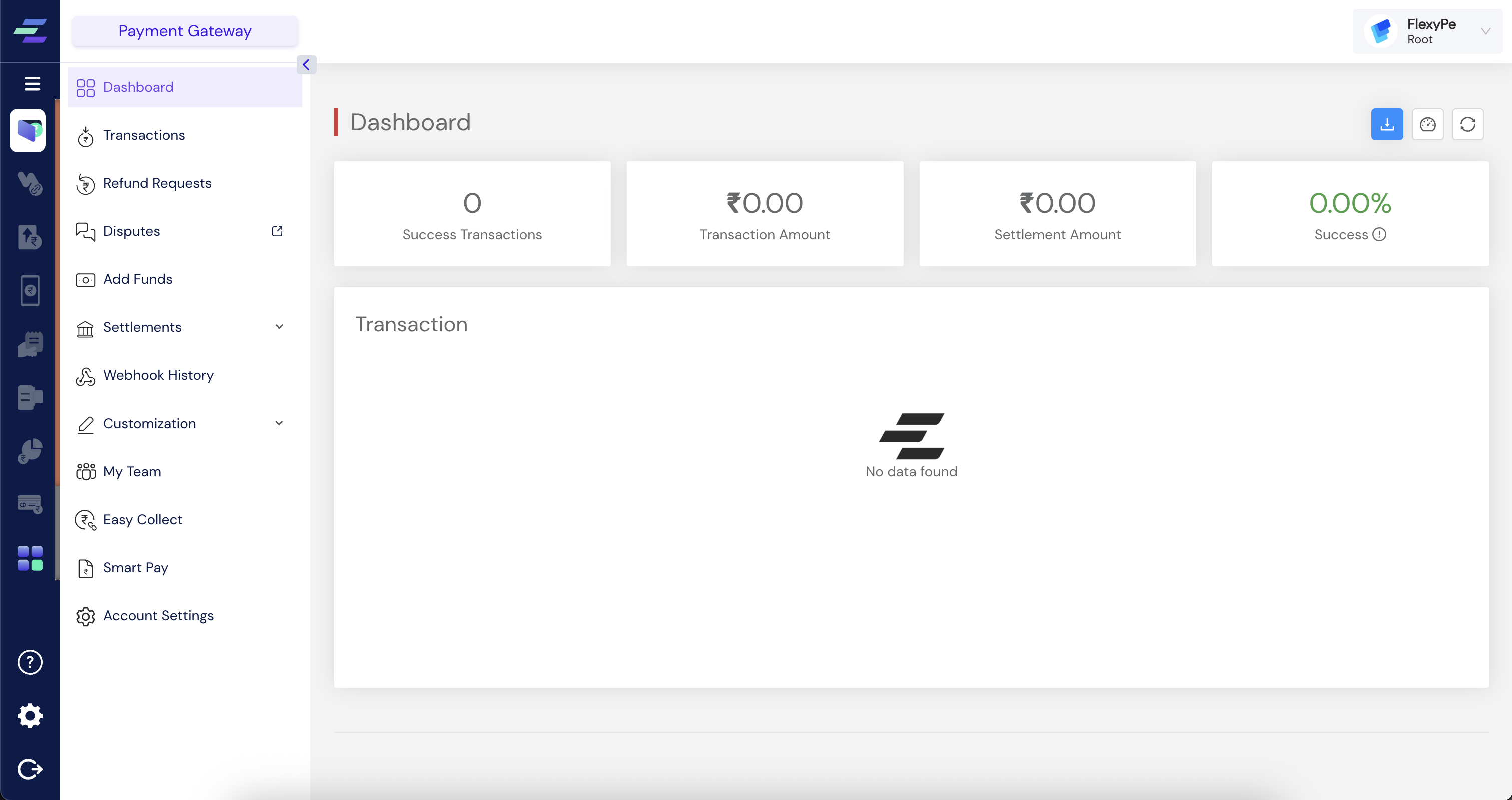 * Return to your Easebuzz Dashboard, where you are already logged in.
* Click on Payment Gateway on the left sidebar.
* Select on Account Settings under Payment Gateway and then switch to Webhooks.
Webhooks set-up is a mandatory step as it confirms the order creation on your store
* Return to your Easebuzz Dashboard, where you are already logged in.
* Click on Payment Gateway on the left sidebar.
* Select on Account Settings under Payment Gateway and then switch to Webhooks.
Webhooks set-up is a mandatory step as it confirms the order creation on your store
 ```
https://api.flexype.in/v1/public/pg/ezb/webhook
```
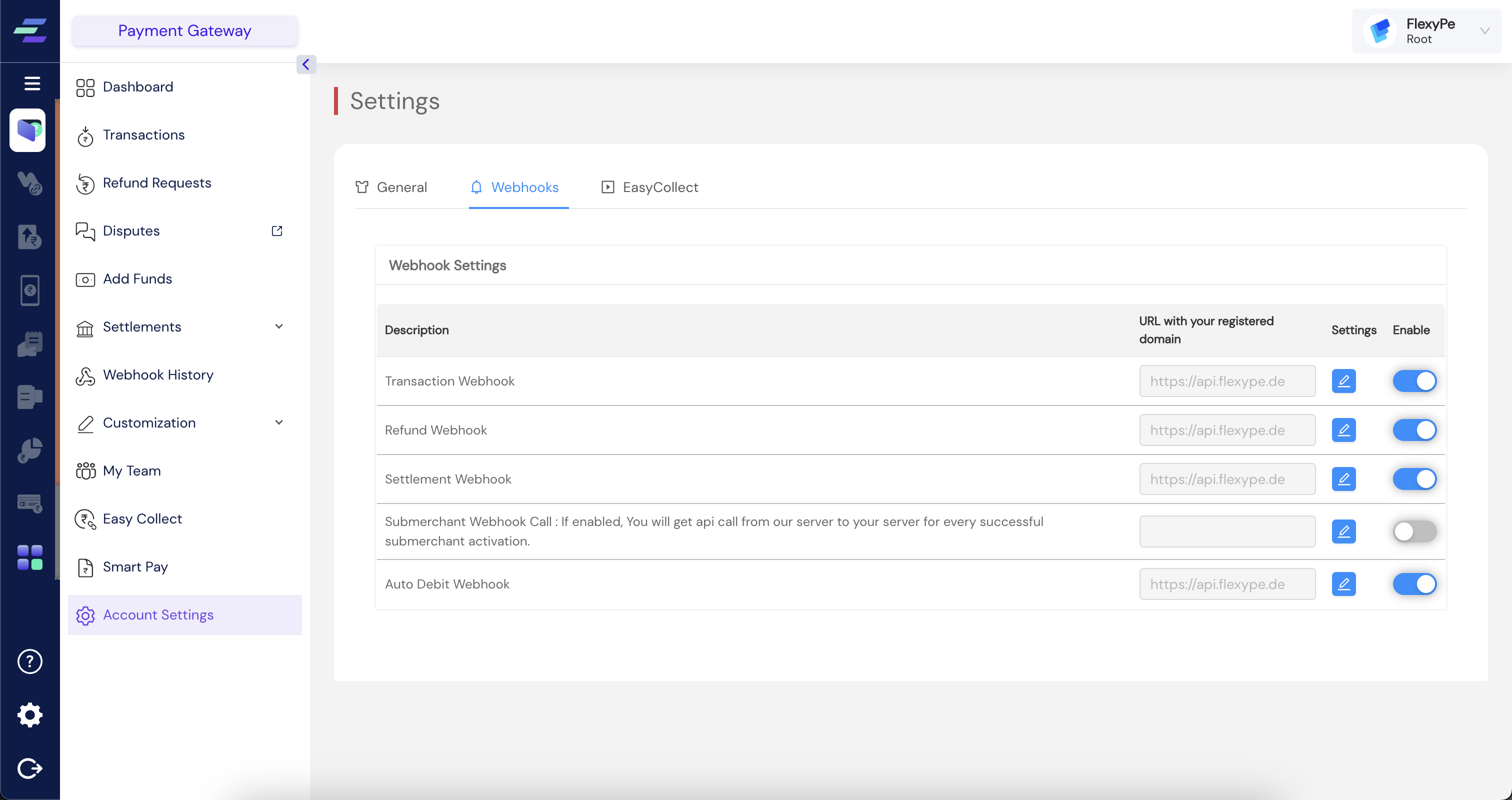
* Add the above URL and enable the settings for
* Transaction Webhook
* Refund Webhook
* Settlement Webhook
* Auto Debit Webhook
* After adding your payment credentials in FlexyPe and configuring the webhook, the setup is complete.
* FlexyPe is now connected to your Shopify store and ready to process payments.
By following these steps, you’ll successfully integrate Easebuzz with FlexyPe, enabling secure payment processing and a smooth checkout experience.
```
https://api.flexype.in/v1/public/pg/ezb/webhook
```
* Add the above URL and enable the settings for
* Transaction Webhook
* Refund Webhook
* Settlement Webhook
* Auto Debit Webhook
* After adding your payment credentials in FlexyPe and configuring the webhook, the setup is complete.
* FlexyPe is now connected to your Shopify store and ready to process payments.
By following these steps, you’ll successfully integrate Easebuzz with FlexyPe, enabling secure payment processing and a smooth checkout experience.