> ## Documentation Index
> Fetch the complete documentation index at: https://docs.flexype.io/llms.txt
> Use this file to discover all available pages before exploring further.
# Google Analytics
Integrating Google Analytics with FlexyPe is quick and easy. Follow a few simple steps to track user behavior and conversion events across your website. With this integration, you gain valuable insights into how customers interact with your checkout, enabling you to optimize your user experience and make informed, data-driven marketing decisions.
## Getting the Measurement ID and API Secret
 * Log in to [Google Analytics](https://analytics.google.com/analytics/web).
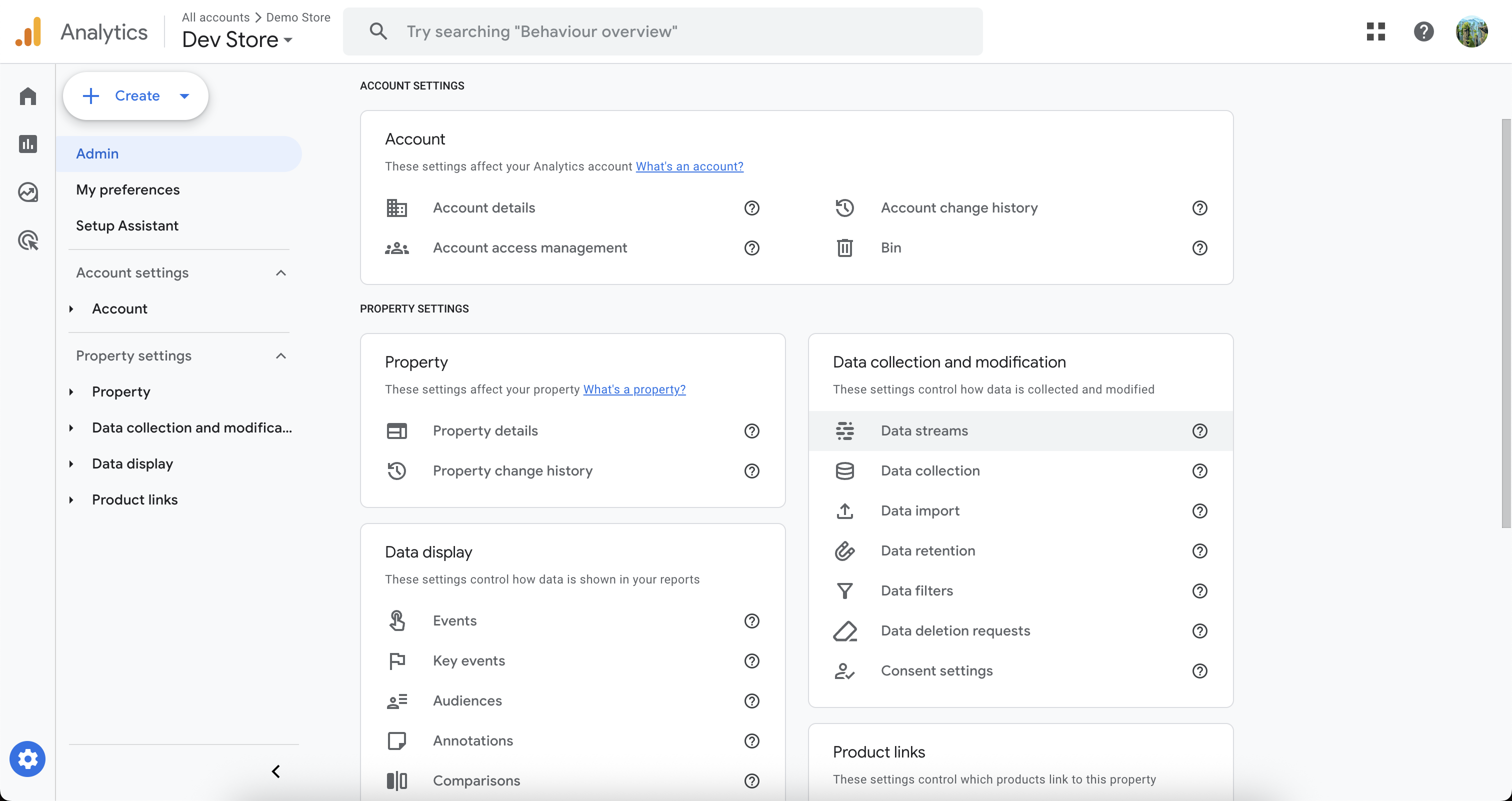
* Click on Admin on the bottom left panel.
* In Property settings, go to Data Streams under the Data Collection and Modification section.
* Log in to [Google Analytics](https://analytics.google.com/analytics/web).
* Click on Admin on the bottom left panel.
* In Property settings, go to Data Streams under the Data Collection and Modification section.
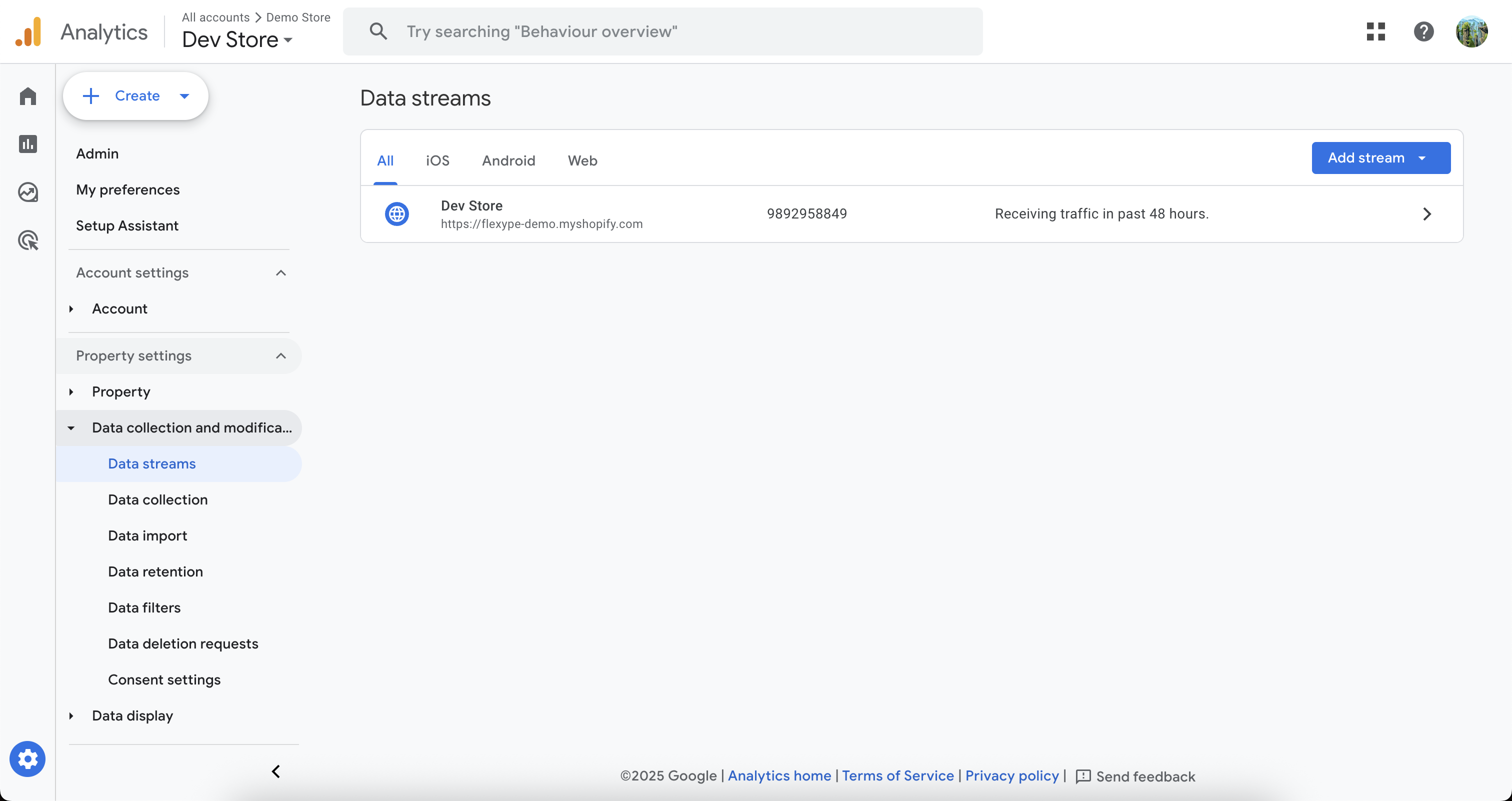 * Select your existing Web data stream.
* If you don’t have one, click **Add Stream** and choose **Web** to create a new data stream for your site.
* Select your existing Web data stream.
* If you don’t have one, click **Add Stream** and choose **Web** to create a new data stream for your site.
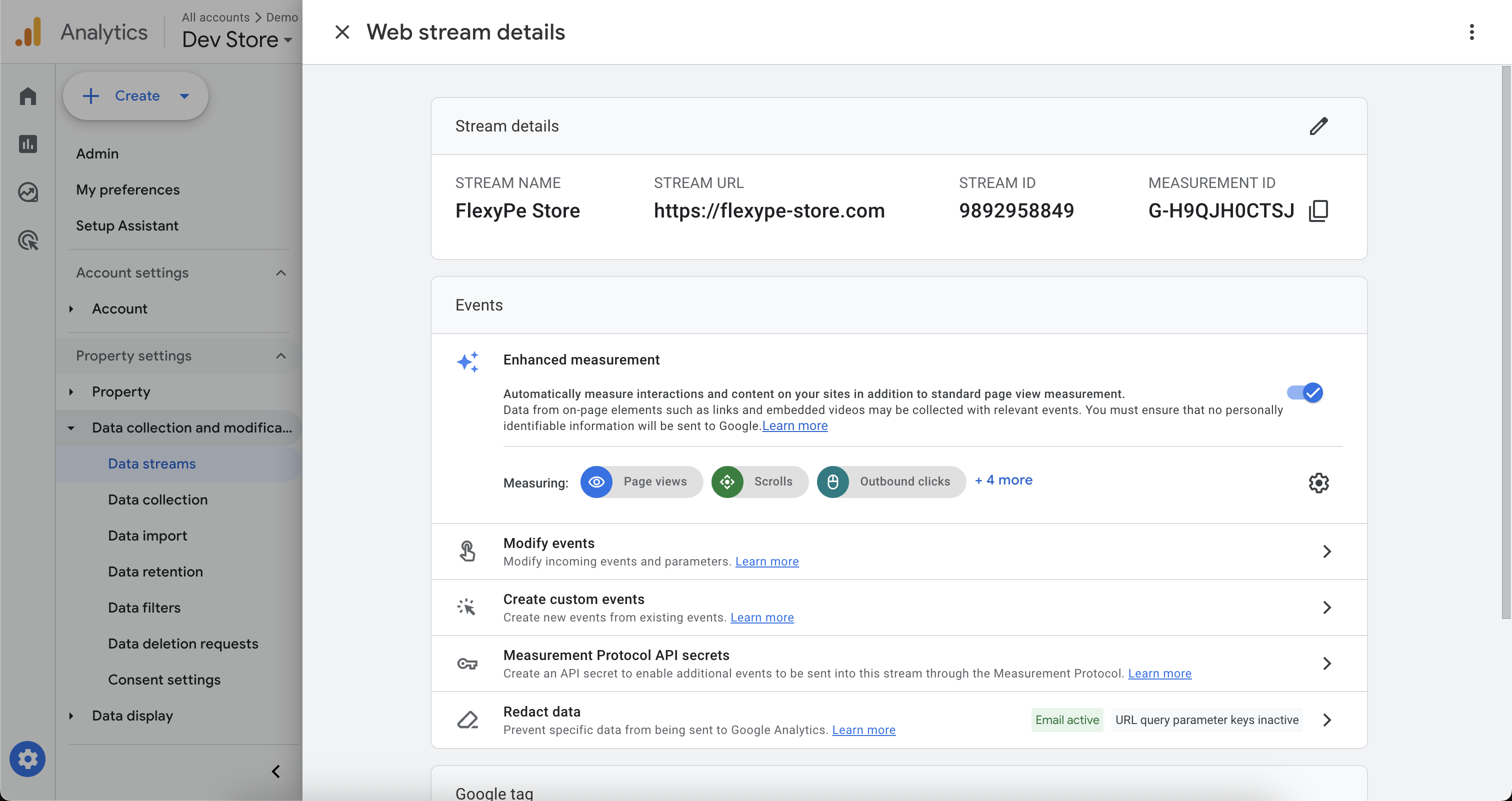 * Select your **Web** data stream from the list.
* Copy the **Measurement ID** from Stream details and keep it handy for configuration.
* Select your **Web** data stream from the list.
* Copy the **Measurement ID** from Stream details and keep it handy for configuration.
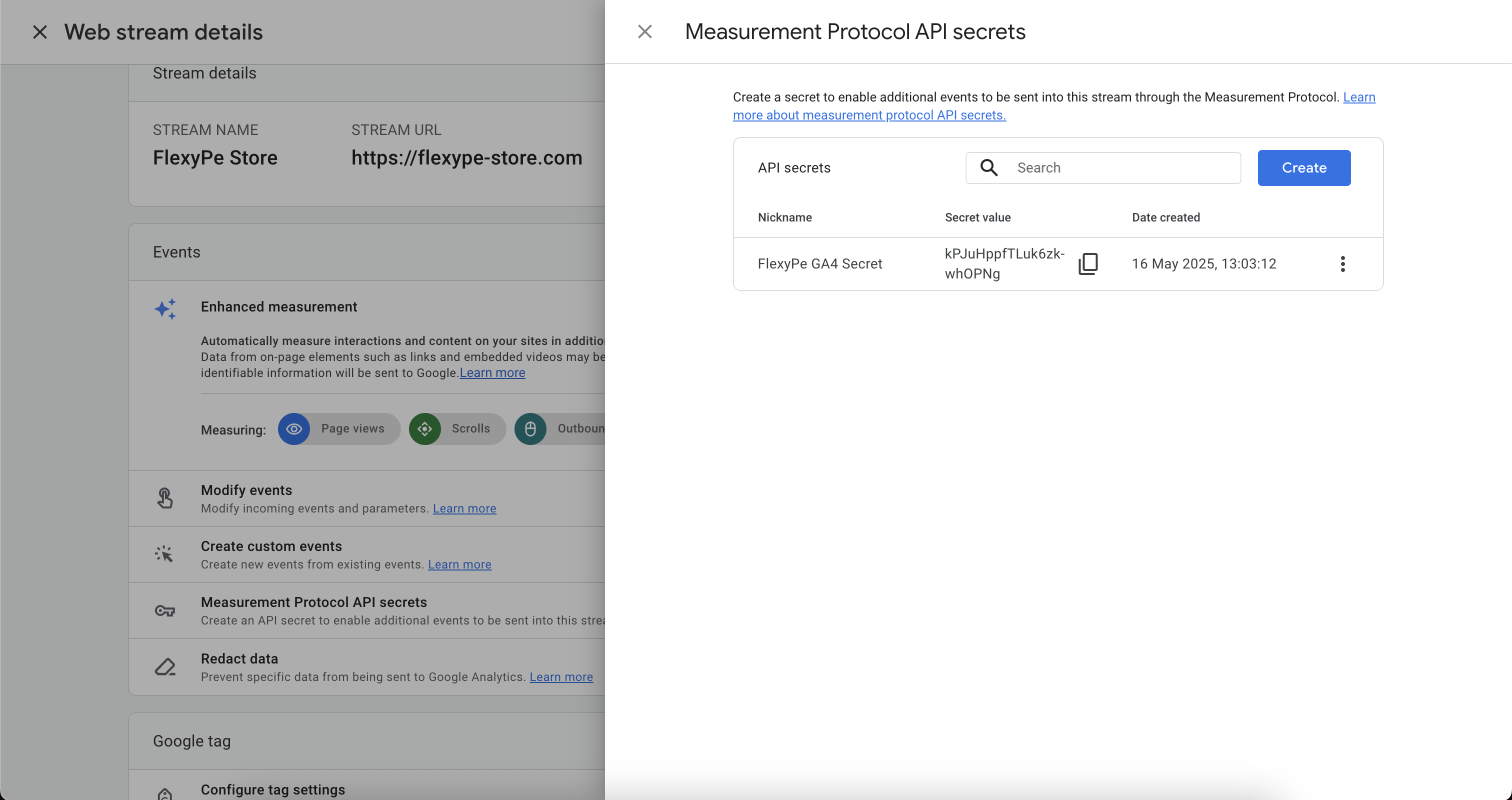 * On the same data stream scroll down to Measurement Protocol API secrets and click on it.
* Copy the **Secret Value** and keep it handy for configuration.
## Integrate Google Analytics with FlexyPe
* On the same data stream scroll down to Measurement Protocol API secrets and click on it.
* Copy the **Secret Value** and keep it handy for configuration.
## Integrate Google Analytics with FlexyPe
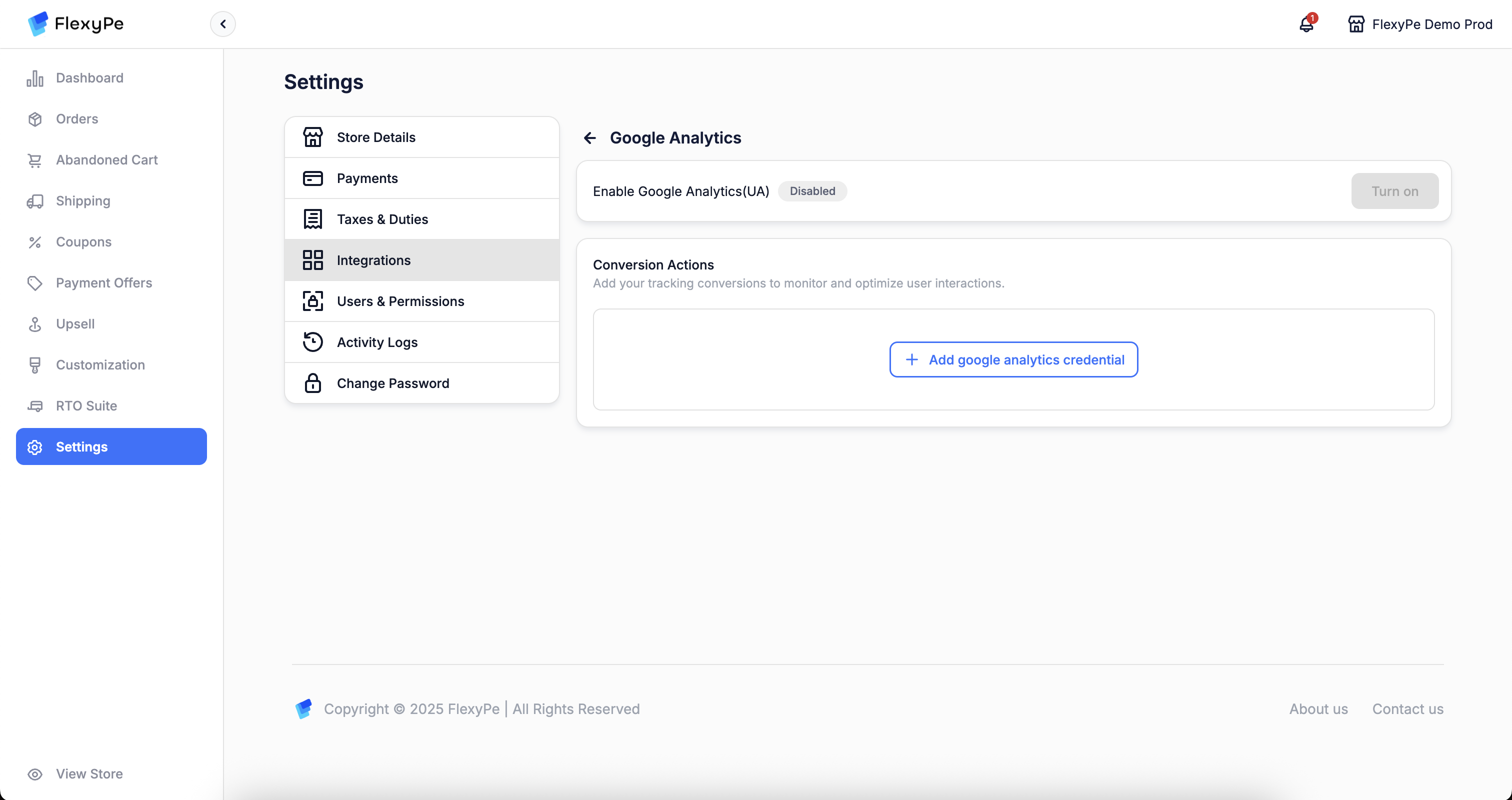 * Log in to your [FlexyPe Dashboard](https://dashboard.flexype.io).
* Click on the Settings menu and select Integrations.
* Navigate to Google Analytics.
* Log in to your [FlexyPe Dashboard](https://dashboard.flexype.io).
* Click on the Settings menu and select Integrations.
* Navigate to Google Analytics.
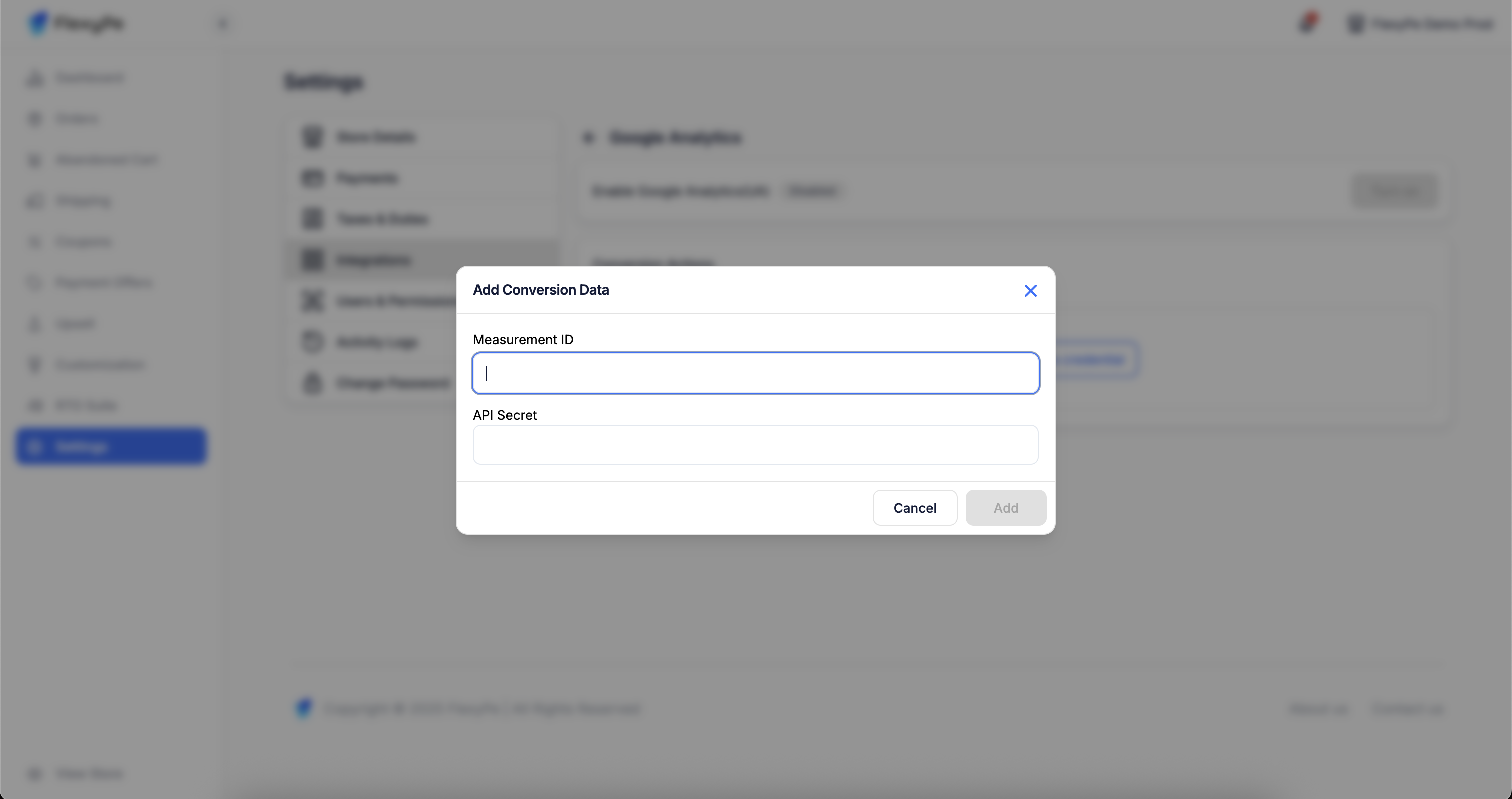 * Click on the Add new conversion action.
* Paste the copied **Measurement ID** into the designated field.
* Paste the copied **Secret Value** into the API Secret field.
* Click Save to finalize the conversion action.
* Click on the Add new conversion action.
* Paste the copied **Measurement ID** into the designated field.
* Paste the copied **Secret Value** into the API Secret field.
* Click Save to finalize the conversion action.
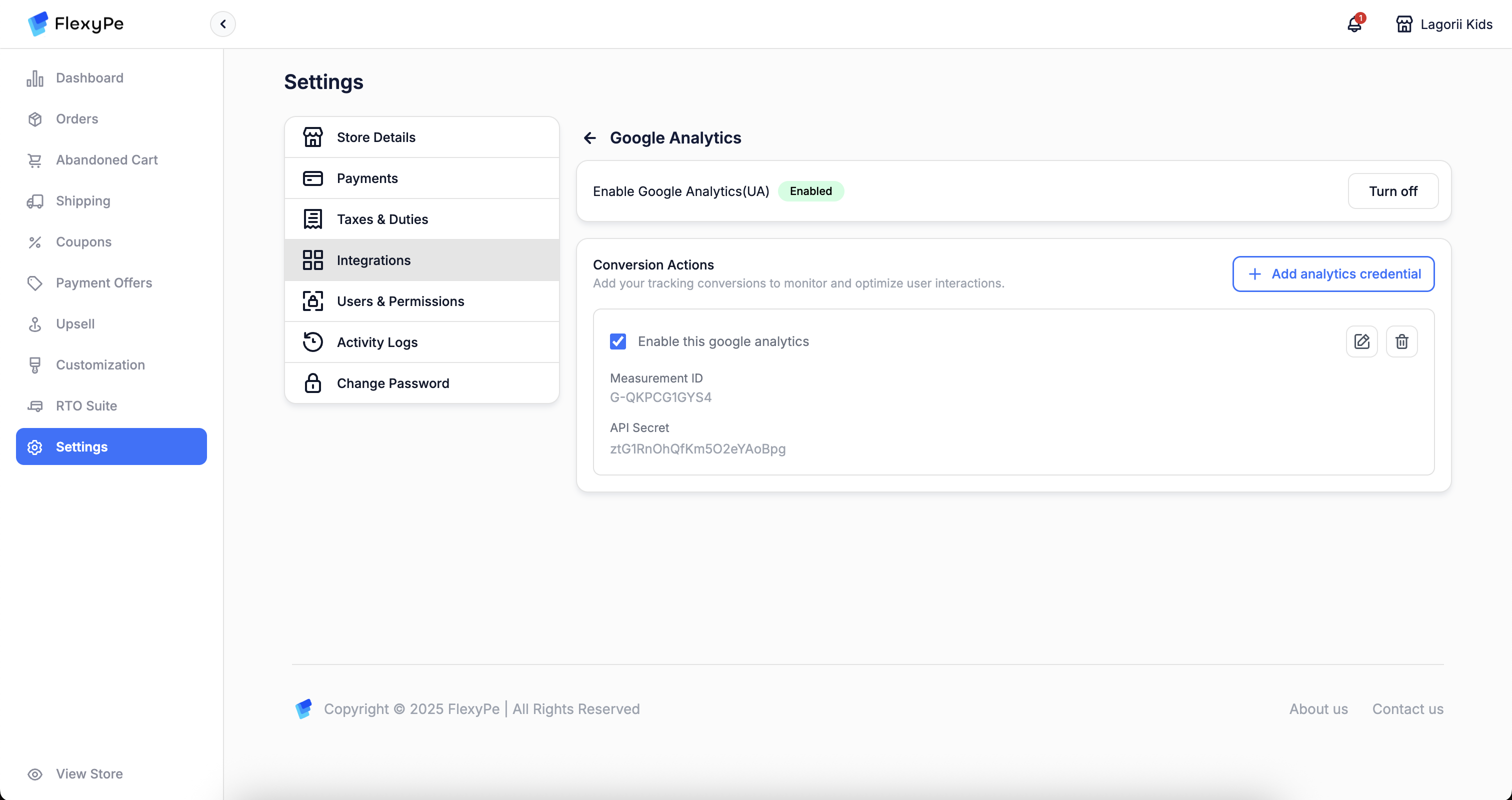 * Once you've added the conversion action, your setup is complete.
* FlexyPe is now connected to your Shopify store and ready to track conversions from Google Analytics.
By following these steps, you’ll successfully integrate Google Analytics with FlexyPe, enabling comprehensive tracking of user behavior and conversions for deeper insights and smarter optimization.
* Once you've added the conversion action, your setup is complete.
* FlexyPe is now connected to your Shopify store and ready to track conversions from Google Analytics.
By following these steps, you’ll successfully integrate Google Analytics with FlexyPe, enabling comprehensive tracking of user behavior and conversions for deeper insights and smarter optimization.