> ## Documentation Index
> Fetch the complete documentation index at: https://docs.flexype.io/llms.txt
> Use this file to discover all available pages before exploring further.
# Shipping
> The **Shipping** section in FlexyPe enables precise configuration of zones, rates, COD options, and non-serviceable PIN codes. Sync effortlessly from Shopify to maintain platform alignment and deliver reliable checkout experiences.
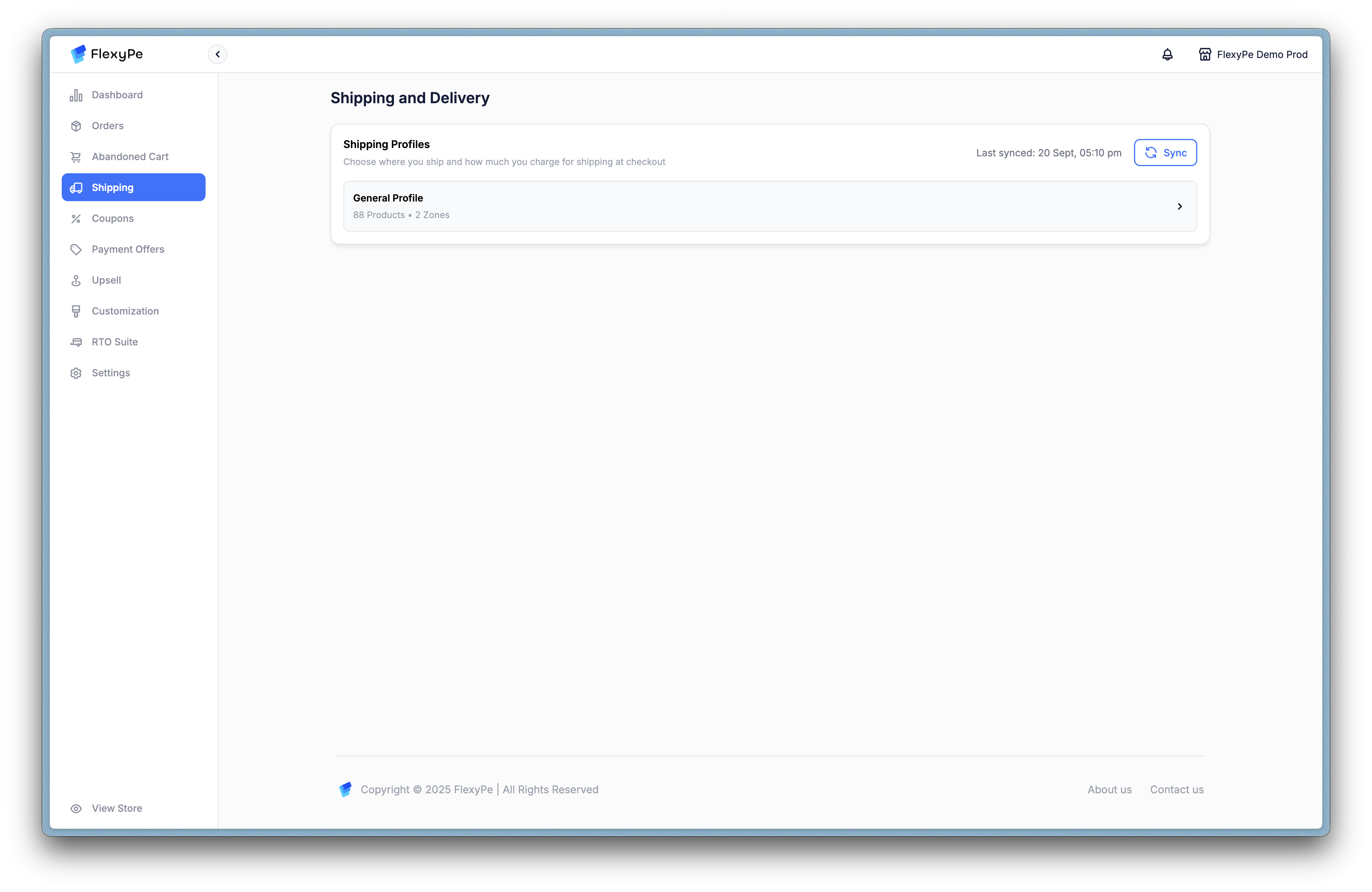
## Step 1: Access and Sync Shipping Profiles
Navigate to **Shipping** in the left menu to view your profiles. Sync from Shopify for instant alignment of zones and rates, or use **Add Shipping Zone** to build custom ones.
## Step 2: Explore Shipping Zones
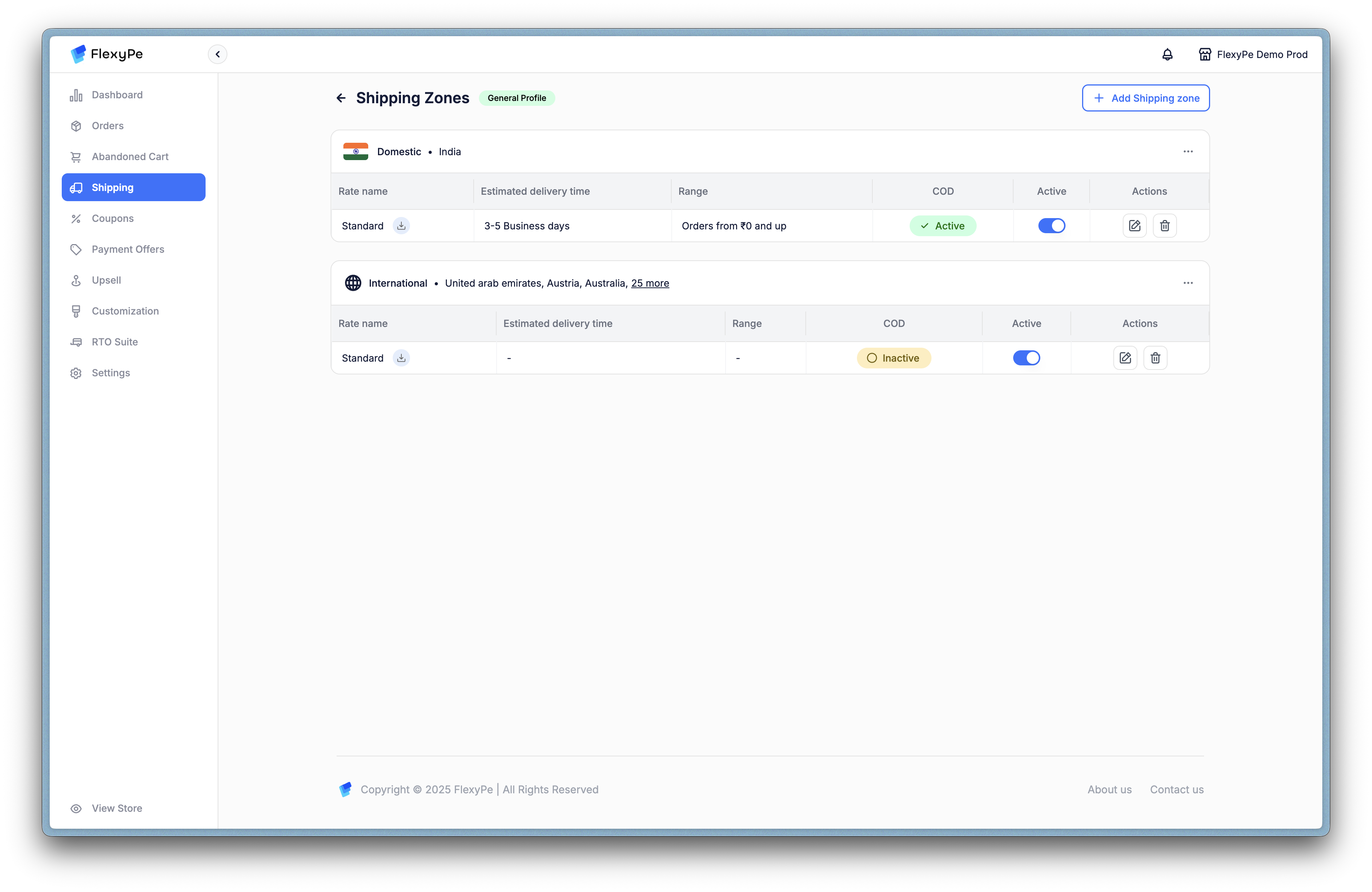
Within a profile (e.g., *General Profile*), review zones like **Domestic** or **International**. Each displays rate names, delivery estimates, price ranges, COD status, and quick actions for edits or toggles.
## Step 3: Build a New Shipping Zone
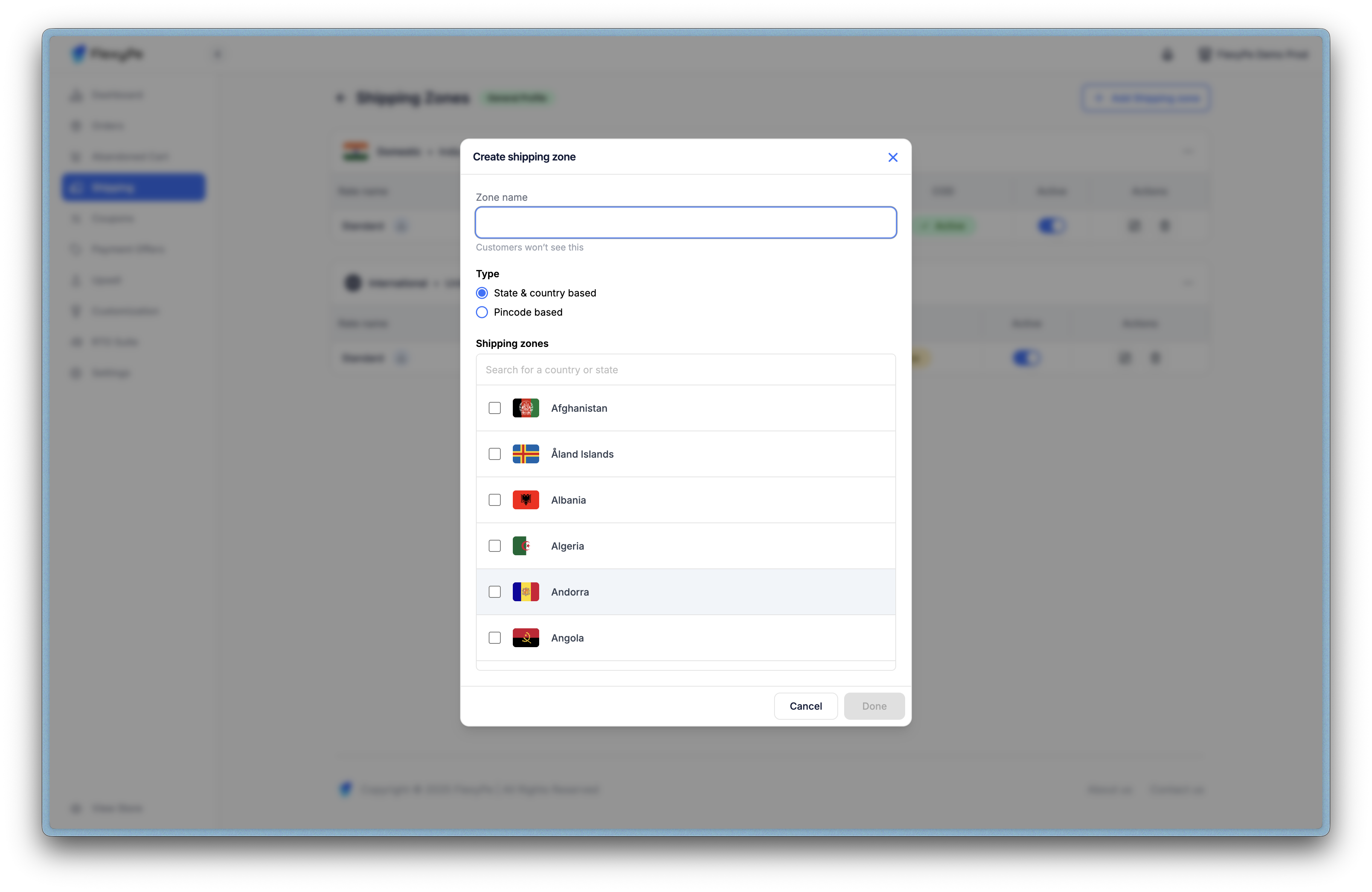
Select **Add Shipping Zone** to create targeted delivery areas. Name the zone internally, then choose **State & Country** for broad coverage or **Pincode** for specifics—select multiples or upload CSVs for efficiency.
## Step 4: Refine Delivery Rates
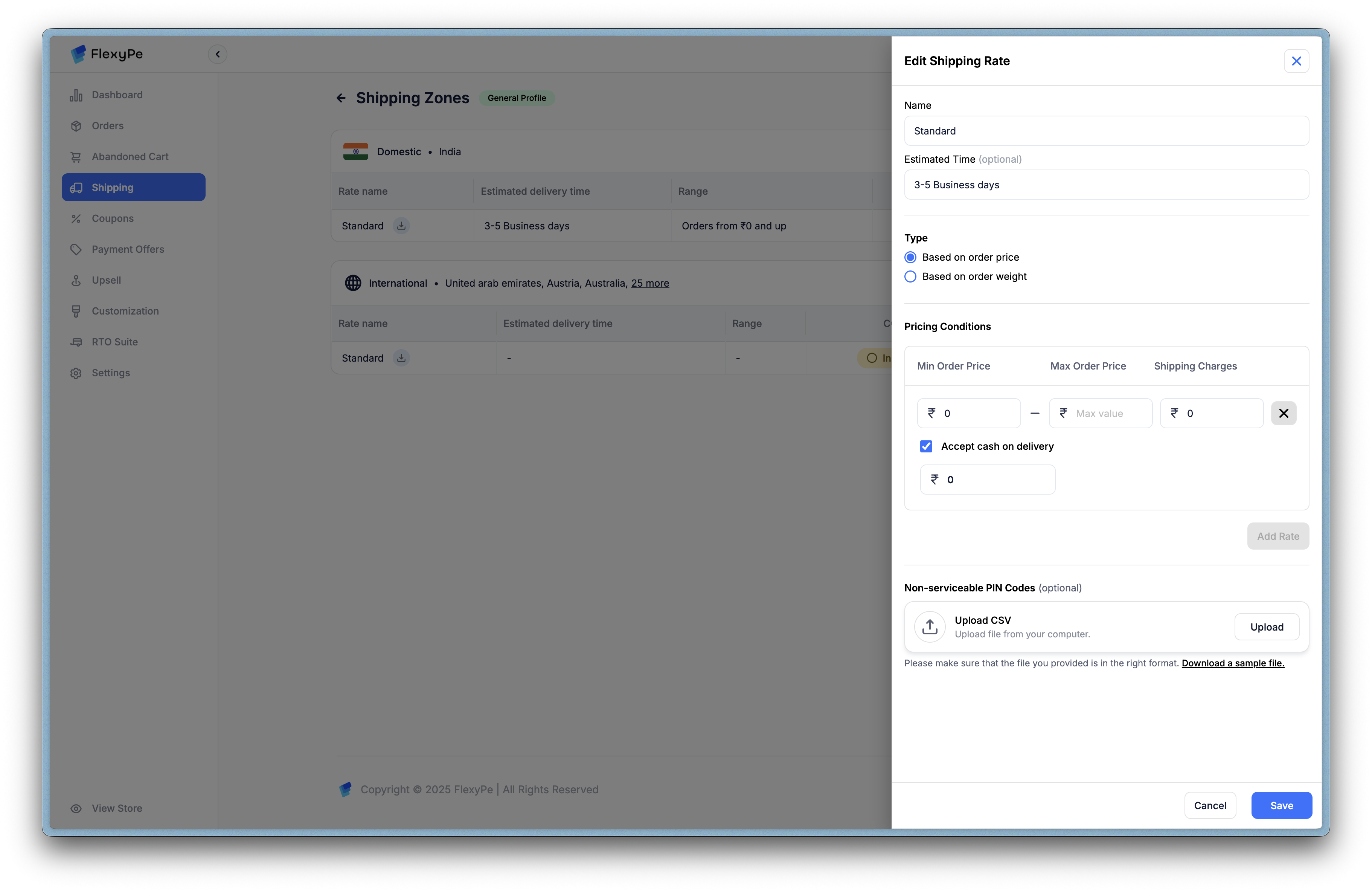
Edit rates via the pencil icon to tailor customer-facing details:
* **Rate Name & Timeline**: E.g., "Standard Delivery in 2-5 days."
* **Pricing Type**: Order value or weight-based, with min/max conditions.
* **COD & Fees**: Activate per zone, add charges to mitigate risks.
* **Exclusions**: Block non-serviceable PINs via CSV upload.
## Strategic Benefits
These tools empower accurate, transparent shipping:
* **Seamless Syncing**: Eliminate discrepancies between Shopify and FlexyPe.
* **Risk Management**: Restrict COD and exclude problematic areas to cut costs.
* **Customer Clarity**: Real-time estimates build trust and reduce support queries.
For hands-on guidance, watch the embedded video above.
 ## Step 2: Explore Shipping Zones
Within a profile (e.g., *General Profile*), review zones like **Domestic** or **International**. Each displays rate names, delivery estimates, price ranges, COD status, and quick actions for edits or toggles.
## Step 2: Explore Shipping Zones
Within a profile (e.g., *General Profile*), review zones like **Domestic** or **International**. Each displays rate names, delivery estimates, price ranges, COD status, and quick actions for edits or toggles.
 ## Step 3: Build a New Shipping Zone
Select **Add Shipping Zone** to create targeted delivery areas. Name the zone internally, then choose **State & Country** for broad coverage or **Pincode** for specifics—select multiples or upload CSVs for efficiency.
## Step 3: Build a New Shipping Zone
Select **Add Shipping Zone** to create targeted delivery areas. Name the zone internally, then choose **State & Country** for broad coverage or **Pincode** for specifics—select multiples or upload CSVs for efficiency.
 ## Step 4: Refine Delivery Rates
Edit rates via the pencil icon to tailor customer-facing details:
* **Rate Name & Timeline**: E.g., "Standard Delivery in 2-5 days."
* **Pricing Type**: Order value or weight-based, with min/max conditions.
* **COD & Fees**: Activate per zone, add charges to mitigate risks.
* **Exclusions**: Block non-serviceable PINs via CSV upload.
## Step 4: Refine Delivery Rates
Edit rates via the pencil icon to tailor customer-facing details:
* **Rate Name & Timeline**: E.g., "Standard Delivery in 2-5 days."
* **Pricing Type**: Order value or weight-based, with min/max conditions.
* **COD & Fees**: Activate per zone, add charges to mitigate risks.
* **Exclusions**: Block non-serviceable PINs via CSV upload.
 ## Strategic Benefits
These tools empower accurate, transparent shipping:
* **Seamless Syncing**: Eliminate discrepancies between Shopify and FlexyPe.
* **Risk Management**: Restrict COD and exclude problematic areas to cut costs.
* **Customer Clarity**: Real-time estimates build trust and reduce support queries.
For hands-on guidance, watch the embedded video above.
## Strategic Benefits
These tools empower accurate, transparent shipping:
* **Seamless Syncing**: Eliminate discrepancies between Shopify and FlexyPe.
* **Risk Management**: Restrict COD and exclude problematic areas to cut costs.
* **Customer Clarity**: Real-time estimates build trust and reduce support queries.
For hands-on guidance, watch the embedded video above.