> ## Documentation Index
> Fetch the complete documentation index at: https://docs.flexype.io/llms.txt
> Use this file to discover all available pages before exploring further.
# Abandoned Checkouts
> See exactly where customers drop off in checkout, and recover those carts automatically.
An **abandoned checkout** is a session where the customer opened FlexyPe checkout, got far enough to be identified, but never completed payment. The dashboard shows each of those sessions, how far the customer got, and what was in their cart — so you can recover the sale or fix what stopped it.
Completed checkouts appear under [Orders](/features/orders). This section is only for sessions that did not convert.
## The abandoned checkouts list
Open **Abandoned Checkouts** from the left navigation.
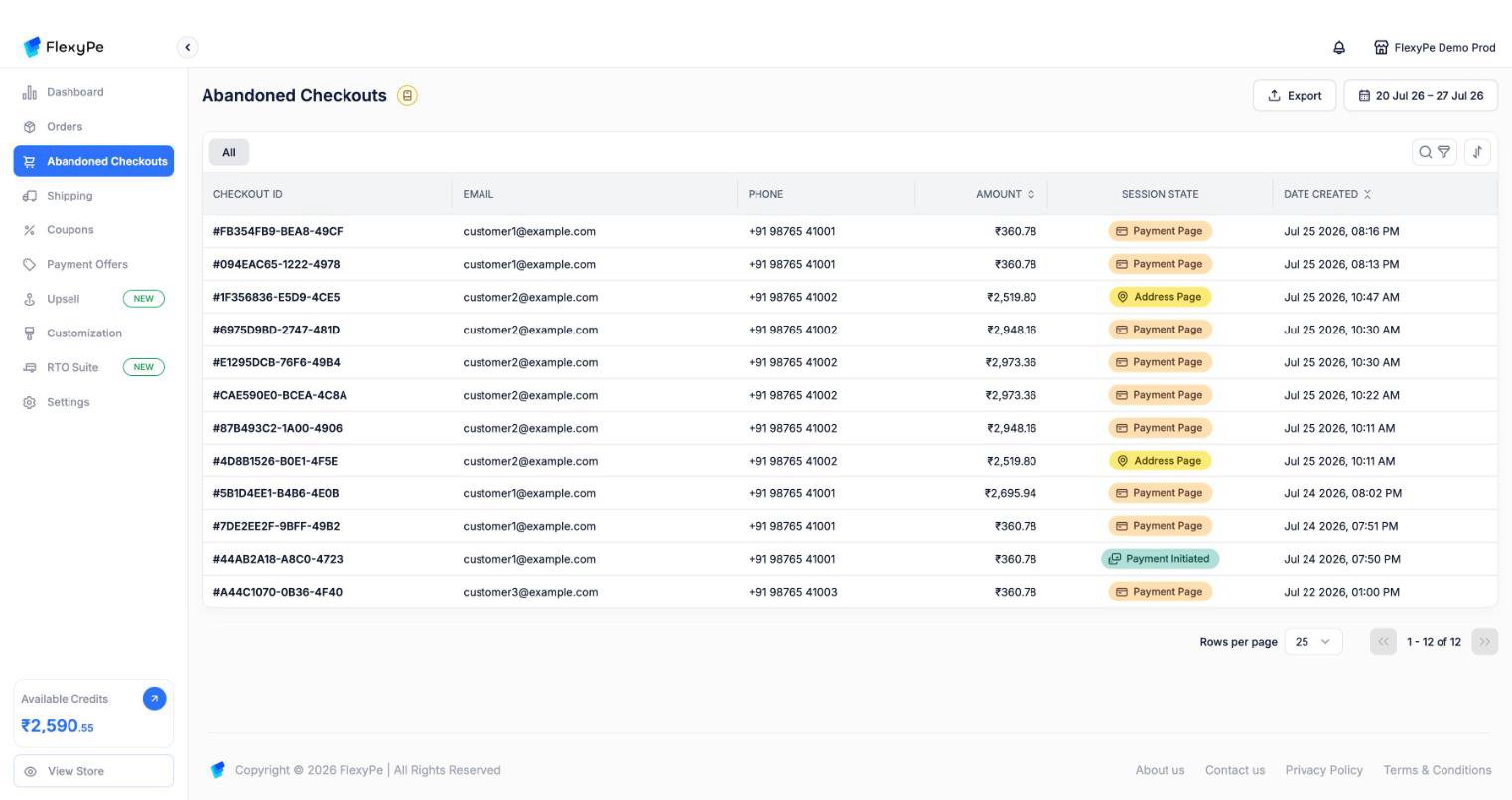 | Column | What it shows |
| ----------------- | -------------------------------------------------- |
| **Checkout ID** | Identifier for the abandoned session |
| **Email** | Customer email, with a one-click copy button |
| **Phone** | Dial code and phone number |
| **Amount** | Value of the cart that was left behind |
| **Session State** | The stage the customer reached before dropping off |
| **Date Created** | When the session started |
Click a row to open the full session. As with orders, the list defaults to the **last 7 days** — widen the date picker to look further back.
### Drop-off stages
The **Session State** tells you where checkout broke down, which is usually the single most useful signal on this page:
| State | What the customer did |
| --------------------- | ------------------------------------------------------------------- |
| **Login Completed** | Identified themselves, then left before entering an address |
| **Address Page** | Reached or filled the address step, then left |
| **Payment Page** | Reached the payment step but never started a payment |
| **Payment Initiated** | Started a payment that did not complete — including failed attempts |
Read the distribution, not individual rows. A pile-up on **Address Page** points at address friction or shipping costs revealed too late. A pile-up on **Payment Initiated** points at gateway failures — check the **Transactions** panel on those sessions.
## Searching, filtering, and exporting
The controls work exactly as they do on [Orders](/features/orders#searching-and-filtering). Open the bar with the **search and filter icons** above the table, or Cmd/Ctrl + F; Esc closes it.
| Column | What it shows |
| ----------------- | -------------------------------------------------- |
| **Checkout ID** | Identifier for the abandoned session |
| **Email** | Customer email, with a one-click copy button |
| **Phone** | Dial code and phone number |
| **Amount** | Value of the cart that was left behind |
| **Session State** | The stage the customer reached before dropping off |
| **Date Created** | When the session started |
Click a row to open the full session. As with orders, the list defaults to the **last 7 days** — widen the date picker to look further back.
### Drop-off stages
The **Session State** tells you where checkout broke down, which is usually the single most useful signal on this page:
| State | What the customer did |
| --------------------- | ------------------------------------------------------------------- |
| **Login Completed** | Identified themselves, then left before entering an address |
| **Address Page** | Reached or filled the address step, then left |
| **Payment Page** | Reached the payment step but never started a payment |
| **Payment Initiated** | Started a payment that did not complete — including failed attempts |
Read the distribution, not individual rows. A pile-up on **Address Page** points at address friction or shipping costs revealed too late. A pile-up on **Payment Initiated** points at gateway failures — check the **Transactions** panel on those sessions.
## Searching, filtering, and exporting
The controls work exactly as they do on [Orders](/features/orders#searching-and-filtering). Open the bar with the **search and filter icons** above the table, or Cmd/Ctrl + F; Esc closes it.
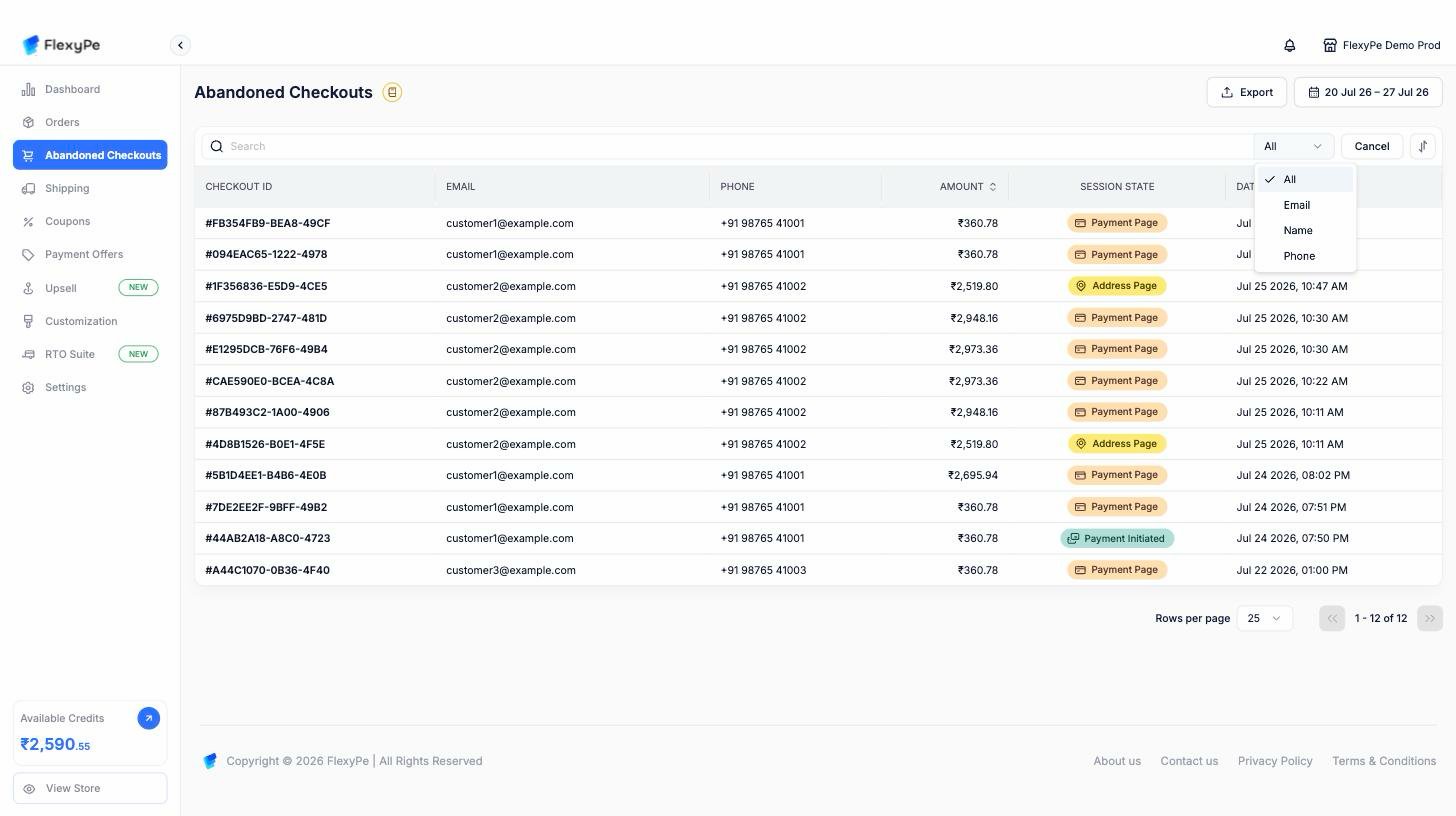 * **Search** across **All** fields, or narrow to **Email**, **Name**, or **Phone**
There is no **Order ID** option here — abandoned sessions never became orders, so they have no order name. Search by checkout ID is not supported either; use email or phone to find a specific customer's session.
* **Filter** with **Add Filter**, by payment status, payment method, and payment provider. Each accepts multiple values, and filters combine
* **Date range** from the button in the top-right, separate from the filter bar
* **Sort** with the sort icon by date created, or click the **Amount** column header to rank carts by value
* **Export** a CSV of everything matching your current filters, delivered by email
Sort by amount, descending, to work your highest-value abandoned carts first. Those are usually worth a personal follow-up rather than an automated one.
## Session details
Opening an abandoned session shows the same panels as an order, minus anything that only exists once an order is placed:
* **Search** across **All** fields, or narrow to **Email**, **Name**, or **Phone**
There is no **Order ID** option here — abandoned sessions never became orders, so they have no order name. Search by checkout ID is not supported either; use email or phone to find a specific customer's session.
* **Filter** with **Add Filter**, by payment status, payment method, and payment provider. Each accepts multiple values, and filters combine
* **Date range** from the button in the top-right, separate from the filter bar
* **Sort** with the sort icon by date created, or click the **Amount** column header to rank carts by value
* **Export** a CSV of everything matching your current filters, delivered by email
Sort by amount, descending, to work your highest-value abandoned carts first. Those are usually worth a personal follow-up rather than an automated one.
## Session details
Opening an abandoned session shows the same panels as an order, minus anything that only exists once an order is placed:
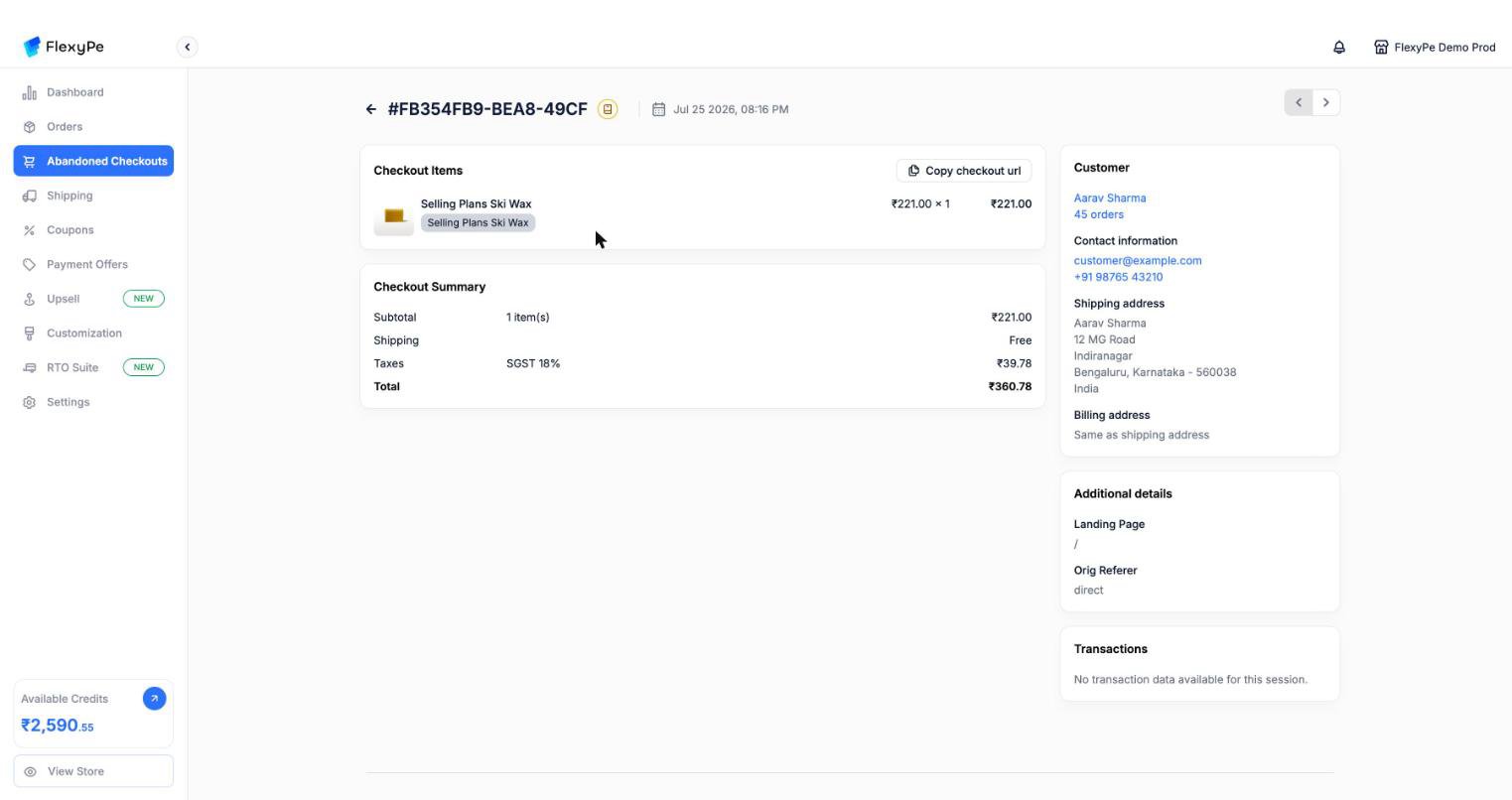 * **Items** — everything in the cart, with variants, quantities, and any discounts or coupons already applied
* **Summary** — subtotal, discounts, shipping, taxes, and the total the customer would have paid
* **Customer** — contact details, addresses entered so far, and how many orders they have placed with you before
* **Transactions** — every payment attempt, including failures, with the gateway, method, and state
* **Conversion details** — sessions before this one, checkout visits, days since first visit, and the full UTM set
* **Exit checkout reasons** — what the customer told you on the way out, when they answered the exit survey
Use **Copy checkout url** to get a link to that exact checkout, which you can paste into a manual follow-up message.
Abandoned sessions cannot be edited. Editing is an order-level action, available only after a session converts.
## How automatic recovery works
FlexyPe watches every checkout session and, shortly after a session goes quiet without converting, triggers recovery.
Recovery only proceeds when all of these are true:
* The session is **still incomplete** — an order was never placed
* The customer is **identified**, so there is somebody to contact
* The customer has **not started a newer session**, so you never chase a customer who already came back
These checks are why the recovery count is smaller than the raw abandoned-checkout count. Sessions from unidentified visitors, and sessions superseded by a newer visit, are deliberately skipped.
FlexyPe recreates the customer's cart on your store, carrying over:
* Every item and quantity
* Coupon codes that were already applied
* The UTM parameters from the original visit, so recovered sales stay attributed correctly
* The stage at which the customer dropped off
The link reopens FlexyPe checkout with the customer's original session restored — items, addresses, and applied discounts intact — so they resume instead of starting over.
FlexyPe emits an [Abandoned Checkout Recovery webhook](/webhooks/2026-05/acr) carrying the session, customer, and cart, so your CRM or messaging tool can send the follow-up on your own schedule and in your own voice.
The abandoned checkout event fires **15 minutes** after a checkout session opens without completing. See [Event Triggers](/webhooks/event-triggers) for the exact conditions.
### Recovering visitors who never reached checkout
Customers who browsed but never started checkout are covered by a separate event — [Abandoned Session Recovery](/webhooks/2026-05/asr), which fires after 15 minutes of inactivity. Use it to reach shoppers earlier in the funnel than this page covers.
## Reducing abandonment in the first place
Recovery is the fallback. Checkout can also intervene at the moment a customer tries to leave, using an exit flow you configure under [Checkout Customization](/features/customization/general):
Reminds the customer of a discount they qualify for and offers to apply it on the spot. If no coupon applies, they see the standard confirmation instead.
Warns that items in the cart are nearly out of stock, adding urgency to completing the order now.
Asks why the customer is leaving, with options you define plus a free-text box. Answers show up in the **Exit checkout reasons** panel on that session.
A plain confirmation warning that progress will be lost, for when you don't want an offer or a survey.
Run the exit survey for a few weeks first. Once you know why people leave, switch to the flow that addresses the top reason — a saving reminder does nothing for someone who left because delivery was too slow.
## Frequently asked questions
The customer left before identifying themselves. These sessions still count toward abandonment but cannot be recovered, since there is no way to reach the customer.
No. If the customer starts a newer session, the older one is skipped for recovery.
Yes. Once payment completes, the session becomes an order and moves to [Orders](/features/orders).
Customers are starting payments that do not complete. Open the **Transactions** panel on a few of them — repeated failures from one gateway usually point at a provider configuration issue rather than customer hesitation.
The link restores the original session. If the customer's cart is no longer purchasable — for example an item sold out — checkout reflects that when they arrive.
Recovery events are delivered by webhook so your existing messaging stack owns the send. Talk to support about what is available for your account if you would rather FlexyPe handled it.
## Need help?
Sessions that converted, with full payment detail
Payload and setup for the abandoned checkout event
* **Items** — everything in the cart, with variants, quantities, and any discounts or coupons already applied
* **Summary** — subtotal, discounts, shipping, taxes, and the total the customer would have paid
* **Customer** — contact details, addresses entered so far, and how many orders they have placed with you before
* **Transactions** — every payment attempt, including failures, with the gateway, method, and state
* **Conversion details** — sessions before this one, checkout visits, days since first visit, and the full UTM set
* **Exit checkout reasons** — what the customer told you on the way out, when they answered the exit survey
Use **Copy checkout url** to get a link to that exact checkout, which you can paste into a manual follow-up message.
Abandoned sessions cannot be edited. Editing is an order-level action, available only after a session converts.
## How automatic recovery works
FlexyPe watches every checkout session and, shortly after a session goes quiet without converting, triggers recovery.
Recovery only proceeds when all of these are true:
* The session is **still incomplete** — an order was never placed
* The customer is **identified**, so there is somebody to contact
* The customer has **not started a newer session**, so you never chase a customer who already came back
These checks are why the recovery count is smaller than the raw abandoned-checkout count. Sessions from unidentified visitors, and sessions superseded by a newer visit, are deliberately skipped.
FlexyPe recreates the customer's cart on your store, carrying over:
* Every item and quantity
* Coupon codes that were already applied
* The UTM parameters from the original visit, so recovered sales stay attributed correctly
* The stage at which the customer dropped off
The link reopens FlexyPe checkout with the customer's original session restored — items, addresses, and applied discounts intact — so they resume instead of starting over.
FlexyPe emits an [Abandoned Checkout Recovery webhook](/webhooks/2026-05/acr) carrying the session, customer, and cart, so your CRM or messaging tool can send the follow-up on your own schedule and in your own voice.
The abandoned checkout event fires **15 minutes** after a checkout session opens without completing. See [Event Triggers](/webhooks/event-triggers) for the exact conditions.
### Recovering visitors who never reached checkout
Customers who browsed but never started checkout are covered by a separate event — [Abandoned Session Recovery](/webhooks/2026-05/asr), which fires after 15 minutes of inactivity. Use it to reach shoppers earlier in the funnel than this page covers.
## Reducing abandonment in the first place
Recovery is the fallback. Checkout can also intervene at the moment a customer tries to leave, using an exit flow you configure under [Checkout Customization](/features/customization/general):
Reminds the customer of a discount they qualify for and offers to apply it on the spot. If no coupon applies, they see the standard confirmation instead.
Warns that items in the cart are nearly out of stock, adding urgency to completing the order now.
Asks why the customer is leaving, with options you define plus a free-text box. Answers show up in the **Exit checkout reasons** panel on that session.
A plain confirmation warning that progress will be lost, for when you don't want an offer or a survey.
Run the exit survey for a few weeks first. Once you know why people leave, switch to the flow that addresses the top reason — a saving reminder does nothing for someone who left because delivery was too slow.
## Frequently asked questions
The customer left before identifying themselves. These sessions still count toward abandonment but cannot be recovered, since there is no way to reach the customer.
No. If the customer starts a newer session, the older one is skipped for recovery.
Yes. Once payment completes, the session becomes an order and moves to [Orders](/features/orders).
Customers are starting payments that do not complete. Open the **Transactions** panel on a few of them — repeated failures from one gateway usually point at a provider configuration issue rather than customer hesitation.
The link restores the original session. If the customer's cart is no longer purchasable — for example an item sold out — checkout reflects that when they arrive.
Recovery events are delivered by webhook so your existing messaging stack owns the send. Talk to support about what is available for your account if you would rather FlexyPe handled it.
## Need help?
Sessions that converted, with full payment detail
Payload and setup for the abandoned checkout event